Collect responses anonymously
Collect responses anonymously stops a survey recording who each new response came from: it arrives without a contact, IP address, country, device or browser. Results then show the day each response arrived instead of the time, and a filtered view is refused when too few people match it.
Anonymous responses and the minimum group size are on every plan, including Free. You need to be able to edit the survey to change them.
This walkthrough runs an employee pulse survey from the template to the results, with anonymity on.
Turn on anonymous responses
Section titled “Turn on anonymous responses”Turn it on before you publish, so every response is collected the same way.
-
Open the survey and click Settings in the top bar.
-
Go to the Data Retention section. Response Privacy is at the top of it.
-
Turn on Collect responses anonymously.
-
Under it, choose a Minimum group size: 5 people (default), 7 people, 10 people, 15 people or 20 people. See The minimum group size for what it holds back.
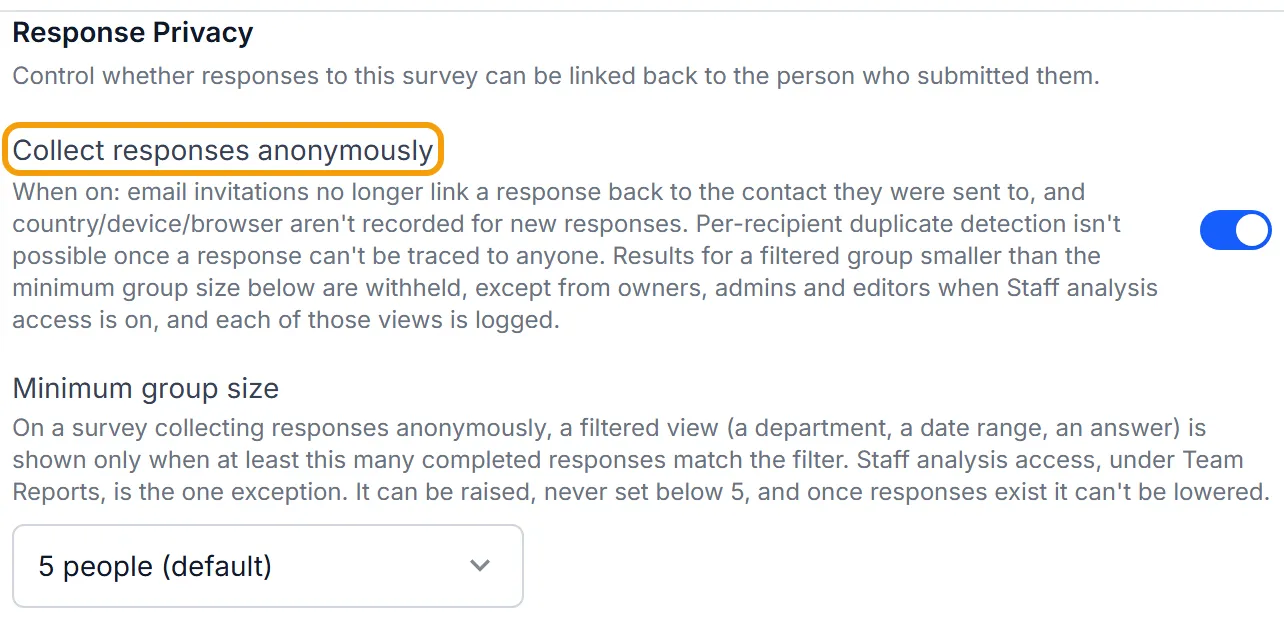
You can’t turn it off once the survey has responses. The setting then reads “This survey already has responses collected anonymously — this can’t be turned off.” That way, nobody who answers later is recorded differently from the people who answered first.
SurveyRock doesn’t tell respondents that a survey is anonymous. Say so in the survey’s introduction, and say what you’ll do with the answers.
You can turn it on after a survey already has responses. Those earlier responses keep their contact and IP address. Only responses that arrive after you switch it on are collected anonymously.
What a response keeps and what it drops
Section titled “What a response keeps and what it drops”With the setting on, a new response does not record:
- the contact it was sent to
- the IP address
- the browser’s user agent, the device type or the browser
- the country
It does keep:
- Its answers, including every open-text comment, exactly as typed.
- The link or campaign it came through. Each response still belongs to a distributor.
- When it started and finished. SurveyRock stores the real times, which keep the response list in order and give each response its duration. Results show a date (see below).
- Anything you put in the survey link yourself: embedded data fields and the five
utm_tags. Don’t put a name, an email address or an employee ID in the link. - Its team, if the survey reports by team. See Team reports.
Because a response no longer points to a contact, SurveyRock can’t spot one person answering twice through the same invitation.
What your results show
Section titled “What your results show”On an anonymous survey:
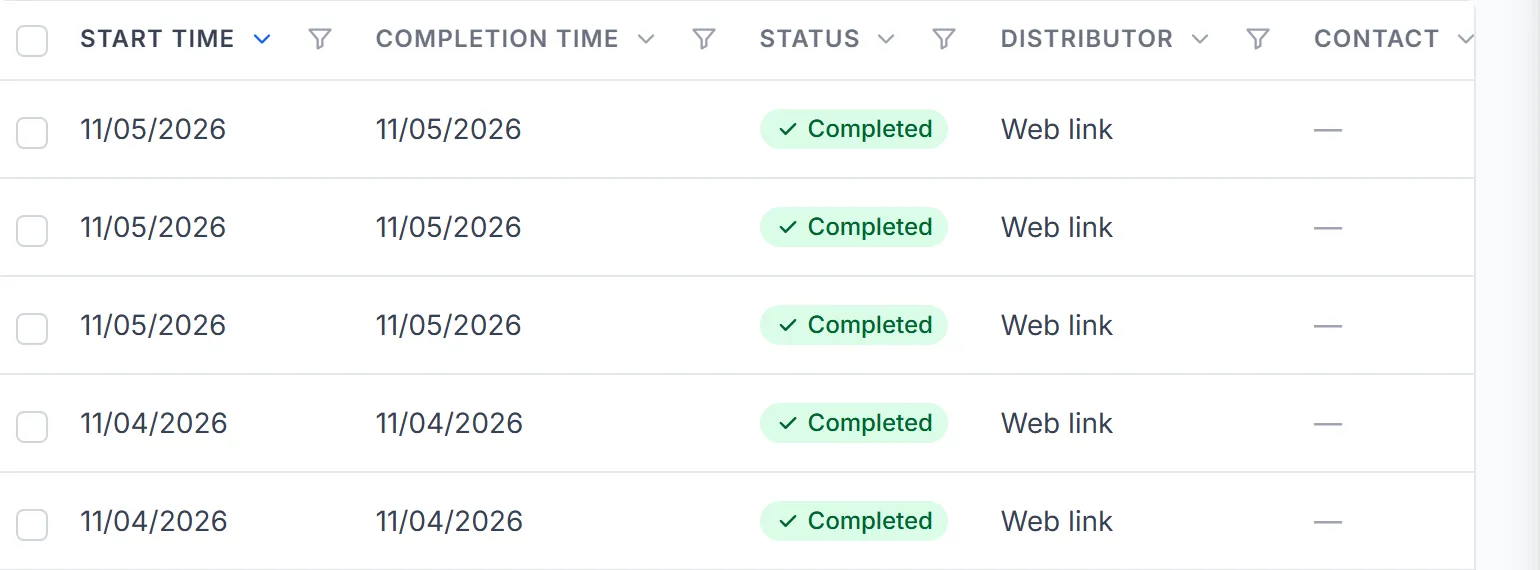
- The response list, each response’s detail page and every export show a date instead of a time. The API’s response endpoints do the same.
- The Contact column shows no contact for any new response.
- Contact fields are listed but greyed out, with “not available, responses are anonymous”. Embedded data you declared still works. See Respondent attributes.
Two things still carry a time:
- The edit history of a response, where a survey allows editing.
- A workflow that alerts you to each new response. It runs as the response arrives, so the alert’s own time gives the arrival time away.
The minimum group size
Section titled “The minimum group size”On an anonymous survey, a filtered view is shown only when at least the minimum group size of completed responses match the filter. The default is 5.
It covers a filter on an answer, a date range, a distributor, a contact field or a team, and every view built on that filter:
- the dashboard’s charts and text cards
- the response list, and moving between responses from the detail page
- text analysis and AI themes, the AI insight and questions you ask the AI
- crosstabs and key driver analysis
- saved views, and CSV, Excel and SPSS exports of a filtered view
When too few completed responses match, SurveyRock shows no results for that view. It says:
This survey collects responses anonymously, and fewer than 5 completed responses match these filters, so they can’t be shown. Remove a filter or widen its range.
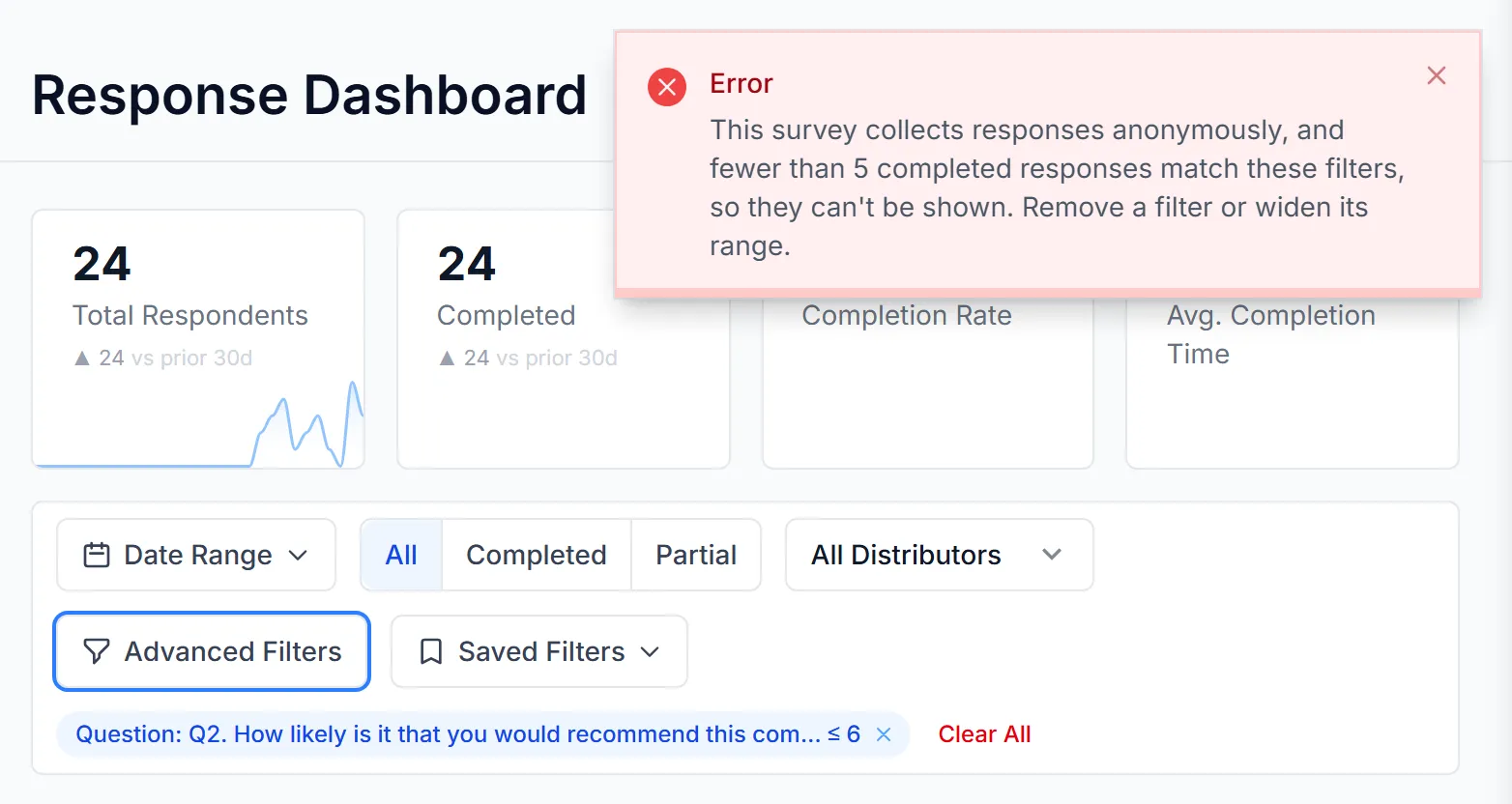
The number in it is the survey’s own minimum. The message never says how many people matched, because a small number is exactly what the minimum holds back. Partial responses count towards the filter but not towards the minimum, so a filter that matches three finished responses and four unfinished ones is still refused at a minimum of 5.
Two filters are never refused:
- A filter that matches nobody. There is nothing to show.
- A filter that is only Completed or Partial. It covers the whole survey.
Filtering the Response Dashboard needs the Team plan or above. See Filter your results. Wherever you can filter an anonymous survey, on any plan, the minimum applies.
Change the minimum
Section titled “Change the minimum”You can raise the minimum group size at any time. Once the survey has responses you can’t lower it: respondents answered a survey that held back groups smaller than that number. It is never below 5.
What the minimum doesn’t cover
Section titled “What the minimum doesn’t cover”The minimum applies to filtered views. These show the whole survey and aren’t held back:
- The unfiltered dashboard, response list and exports. Every comment can be read by anyone who can see the survey’s responses.
- A shared report link. It shows the whole survey.
- The API. It returns every response, each with its distributor and a date for each time.
- The Distribute panel. It shows how many people completed each link. If you make a separate link for one person, that link tells you whether they answered. Use one link for everyone, or one link for each group of at least the minimum.
A minimum makes it harder to single someone out. It doesn’t make it impossible. Two filters that each match enough people, but differ by one person, can still be compared to work out that person’s answers. And a comment can still be recognised by what it says or how it’s written.
Crosstabs, Theme Impact and the country and device breakdowns also hide small cells, and show them as Withheld. See Build a crosstab.
Email invitations
Section titled “Email invitations”When you send the survey by email, an anonymous survey still keeps a list of who it was sent to. That list is what reminders use to reach the people who haven’t finished. On it:
- When someone clicked the link, and when they finished, are stored as a day, not a time.
- Email History shows the invitation’s recipients as delivered (or sent), not opened or clicked. Bounces, failures and unsubscribes are still shown for each person. The totals of opens and clicks don’t change.
- The recipient list of a reminder or a thank-you email is not shown, only its counts.
Three things to know:
- A thank-you email that goes out when someone finishes keeps the exact time each person finished, because it has to know when to send. That applies as soon as the campaign has such a thank-you, sent or not.
- The minimum group size doesn’t apply to email audiences. The reminder and thank-you panels show how many people completed. A reminder sent to one or two people tells you whether they answered.
- A workflow that runs when someone opens the invitation still runs, and still names that contact. A workflow that runs when someone clicks the link doesn’t run on an anonymous survey.
Staff analysis access
Section titled “Staff analysis access”Staff analysis access is the one way past the minimums. It is for the people analysing a survey who need response-level data for small groups, such as a consultant working on a client’s survey. It is on the Growth plan and above, and off by default.
With Settings → Data Retention → Team Reports → Staff analysis access on, workspace owners, admins and editors can filter and read responses for groups below the minimums. That covers both the anonymous minimum and the team minimums. Every view they open below a minimum is recorded in the access log, with who opened it, when and the filter they used. Viewers, shared report links, team leader reports and the API stay bound by the minimums.
It can only be turned on before the survey has its first response. People answered a survey whose small groups nobody could read, so it can’t be added later. You can turn it off at any time, but once the survey has responses, you can’t turn it back on.
If you plan to use it, tell respondents before they answer that the people running the survey can read small groups.
Troubleshooting
Section titled “Troubleshooting”The Collect responses anonymously switch is greyed out. The survey already has anonymous responses, so it can’t be turned off. If the whole settings page is read-only, your role can’t edit this survey.
I can’t lower the minimum group size. The survey has responses. You can still raise it.
A filter shows nothing and says too few responses match. Fewer completed responses than the minimum match it. Remove a filter or widen its range, such as a longer date range.
Staff analysis access says it can’t be turned on. The survey already has responses. Turn it on in a new survey before you publish it.
I don’t see Staff analysis access. It is under Team Reports, which shows on the Growth plan and above.
Is this the same as Anonymize under Data retention? No. A retention policy that anonymizes removes the IP address, browser details, link parameters and contact link from responses after a set period, and keeps the answers. Collect responses anonymously stops a new response recording its contact, IP address and device details in the first place, and keeps its link parameters (see What a response keeps and what it drops).
Do respondents see their own results? If the survey shows results after answering, an anonymous survey holds back each question until it has enough answers. See Show results after answering.