Zapier
Connect SurveyRock to Zapier, and each completed survey can start a Zap in the apps you already use. A Zap can also add a contact to SurveyRock, look one up, or create a survey link. Zapier works on Solo and up. Instant triggers need Team and up.
Connect SurveyRock
Section titled “Connect SurveyRock”-
In Zapier, start a Zap and choose SurveyRock as the app.
-
Choose to connect a new account, then sign in to SurveyRock in the window that opens.
-
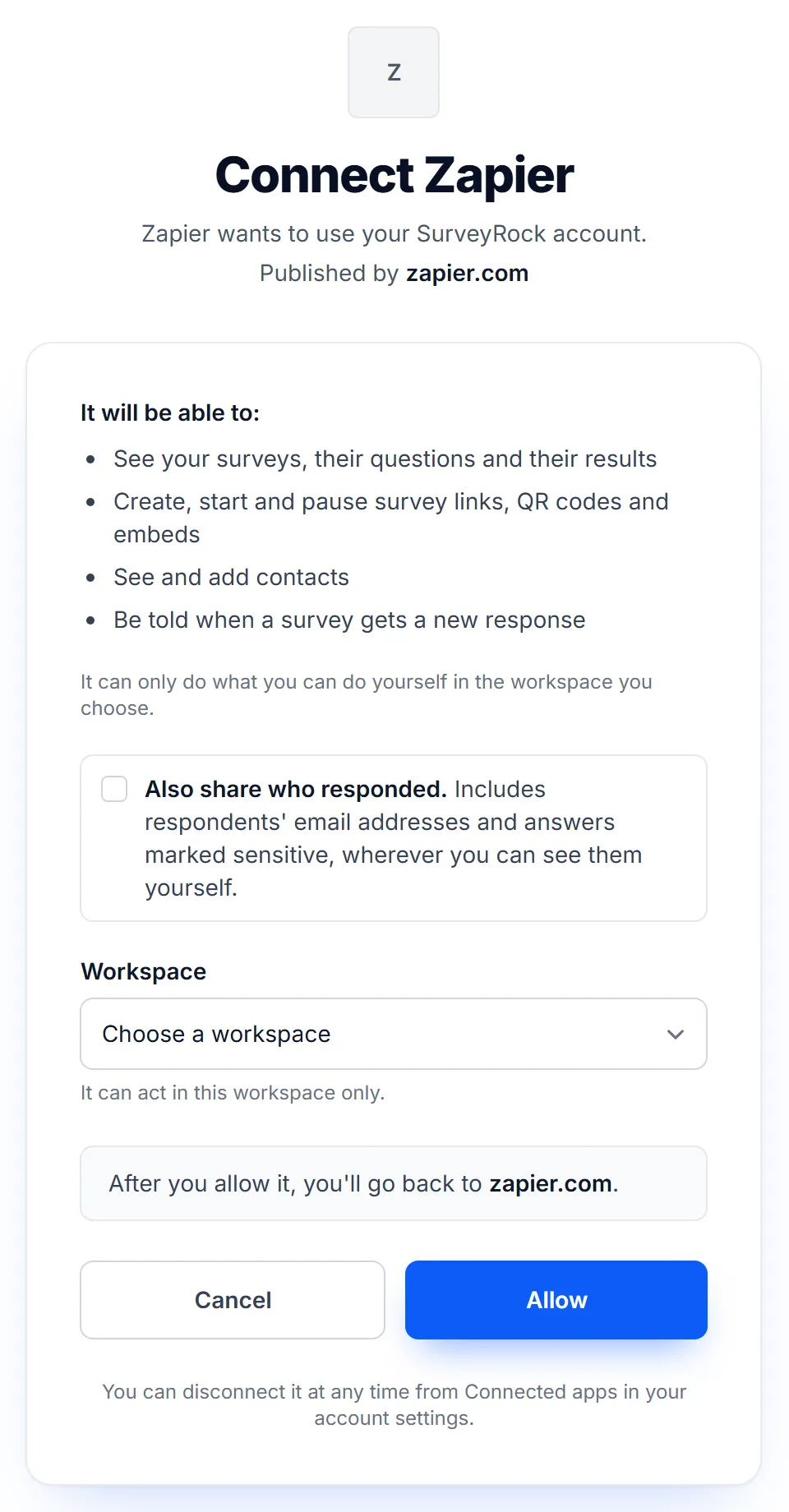
On the consent screen, choose the Workspace. The connection works in that workspace only. To use a second workspace, connect again.
-
Leave Also share who responded unticked unless your Zap needs it. See What Zapier can see.
-
Click Allow.
To use instant triggers, connect as an owner or admin of the workspace. On a plan or role that can’t use them, the scheduled trigger still works.
Triggers
Section titled “Triggers”| Trigger | Starts a Zap when | Plans |
|---|---|---|
| New Response | Someone completes the survey you choose. | Team and up |
| New Low Score Response | Someone gives a score at or below the one you set, on an NPS or rating question you choose. A response above that score doesn’t start the Zap. | Team and up |
| New Response (Scheduled) | Someone completes the survey. Zapier checks on its own schedule, which depends on your Zapier plan. | Solo and up |
Instant triggers usually reach Zapier within about a minute of the response being completed.
Every response gives your Zap one field per question, named after the question, plus a score field for NPS and rating questions. It also gives the response ID and the started and completed times.
Actions and searches
Section titled “Actions and searches”- Create Contact: add a contact to the workspace, with an email address and an optional first and last name.
- Create Survey Link: create a live link to a published survey. The Zap gets the link’s URL to use in a later step.
- Find Contact: look up a contact by email address.
What Zapier can see
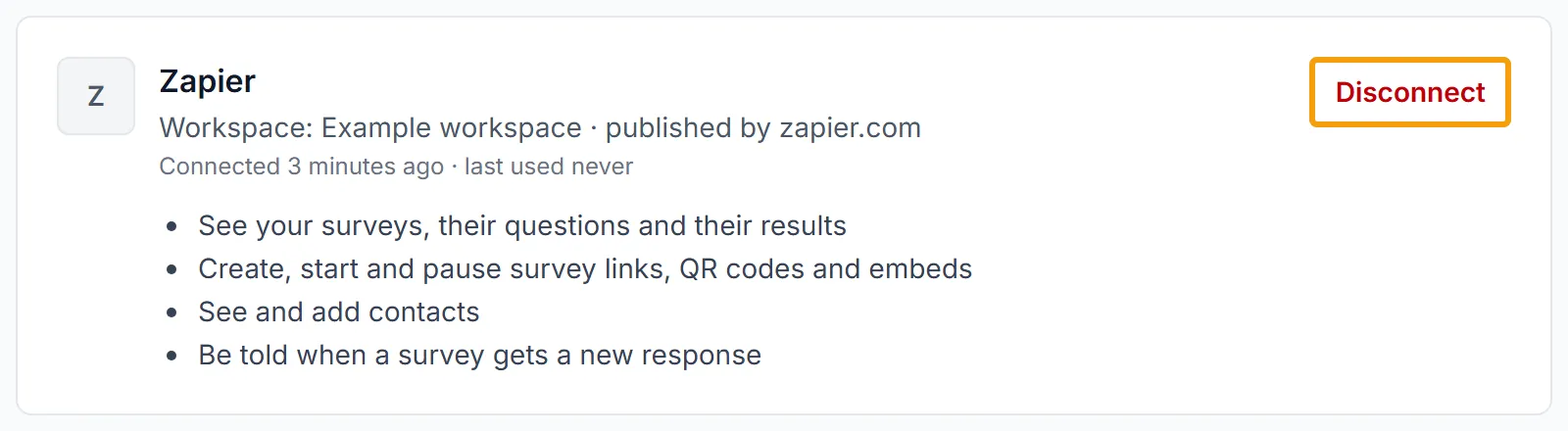
Section titled “What Zapier can see”The consent screen lists what the connection can do, and Connected apps shows the same list later:
- See your surveys, their questions and their results
- Create, start and pause survey links, QR codes and embeds
- See and add contacts
- Be told when a survey gets a new response
Every action is checked against your own role in the workspace. If you can’t do something in SurveyRock yourself, the connection can’t either. It can’t delete a survey, or manage billing, members, roles or workspace settings.
Respondent details are off unless you turn them on. Without Also share who responded, the respondent email and name fields stay empty and answers marked sensitive are left out. Other answers, including open-text answers, are sent to Zapier, and they can contain anything a respondent chose to write.
With the box ticked, Zapier also receives respondents’ email addresses and names, and answers marked sensitive, wherever you can see them yourself. Tick it only when the Zap needs them, and when sharing them fits what you told your respondents. To change your choice, disconnect and connect again.
Once data reaches Zapier, your agreement with Zapier and its privacy policy apply. Zapier is not a SurveyRock sub-processor for data you send there.
The workspace’s owners and admins get one email when a connection is first allowed to receive response events. It says who connected it and whether they shared who responded.
Where Zaps show up in SurveyRock
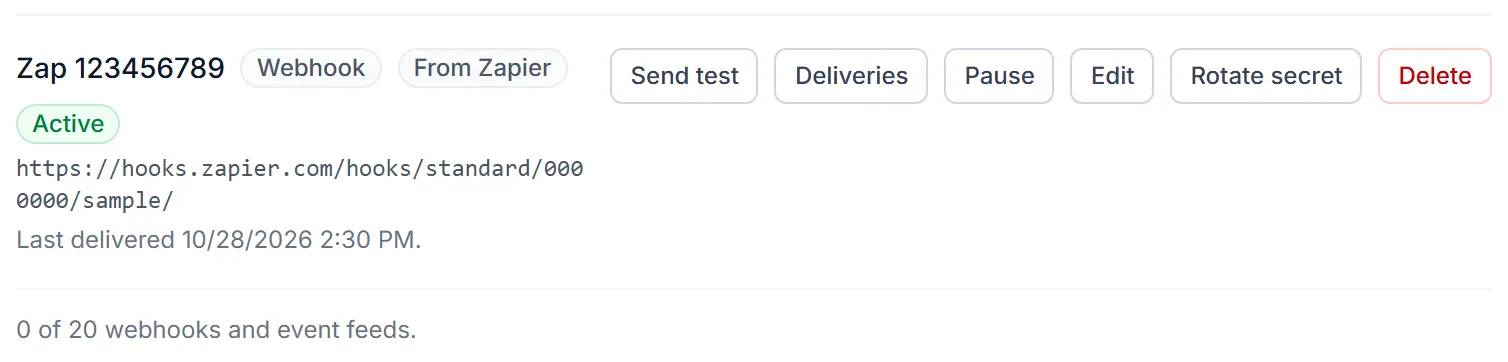
Section titled “Where Zaps show up in SurveyRock”Each Zap using an instant trigger appears in Workspace Settings, under Webhooks, marked From Zapier. Turning the Zap off removes it. A workspace can have up to 100 of these, and they don’t count towards the 20 webhooks you can create yourself.
Disconnect
Section titled “Disconnect”Open Connected apps in your account settings and disconnect Zapier. It stops working at once, and its instant triggers are removed. Removing the connection inside Zapier doesn’t tell SurveyRock, so disconnect it here as well.
A connection otherwise stays until someone disconnects it, the person who connected it leaves the workspace, or the workspace is archived.
If something goes wrong
Section titled “If something goes wrong”| What you see | What it means |
|---|---|
| SurveyRock connects to Zapier on the Solo plan and above | The workspace is on Free. Upgrade under Billing, then connect again. |
| Instant triggers need the Team plan or above | The workspace’s plan or your role doesn’t include instant triggers. Use New Response (Scheduled), or connect as an owner or admin on Team or above. |
| This SurveyRock connection has ended | The connection was disconnected or can’t be used. Reconnect SurveyRock in Zapier. |
Zaps built on the old integration
Section titled “Zaps built on the old integration”If you built a Zap on SurveyRock’s earlier Zapier integration, version 1, it can no longer connect. Build it again on the current version, and choose your survey again when you do.