Share your results
A share link lets someone read a survey’s results without a SurveyRock account. Sharing is on Team and above, and you need to be a workspace Owner or Admin. On Free and Solo the Share button shows a padlock.
Create a link
Section titled “Create a link”-
Open the survey and click Responses in the top bar.
-
On the Response Dashboard, click Share at the top right.
-
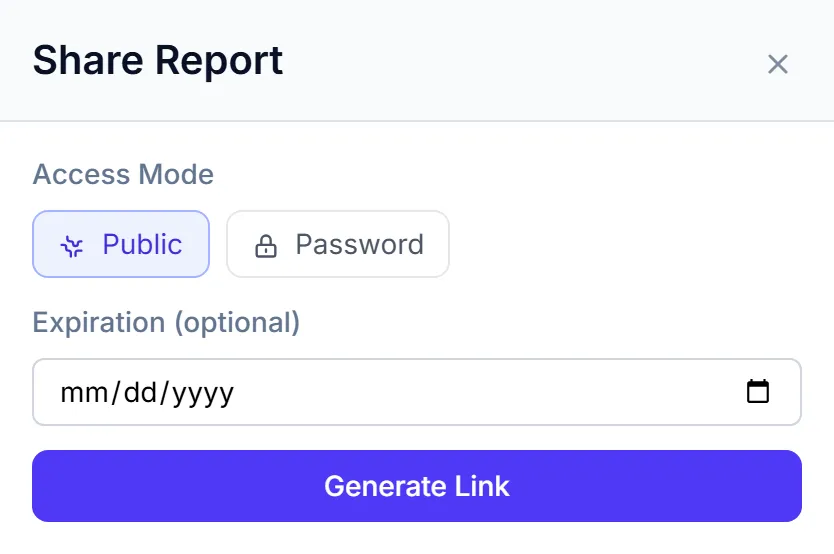
Under Access Mode, choose Public for anyone with the link, or Password, then enter a password.
-
To end the link on a set day, choose a date under Expiration (optional).
-
Click Generate Link.
-
Click Copy and send the link.
What the other person sees
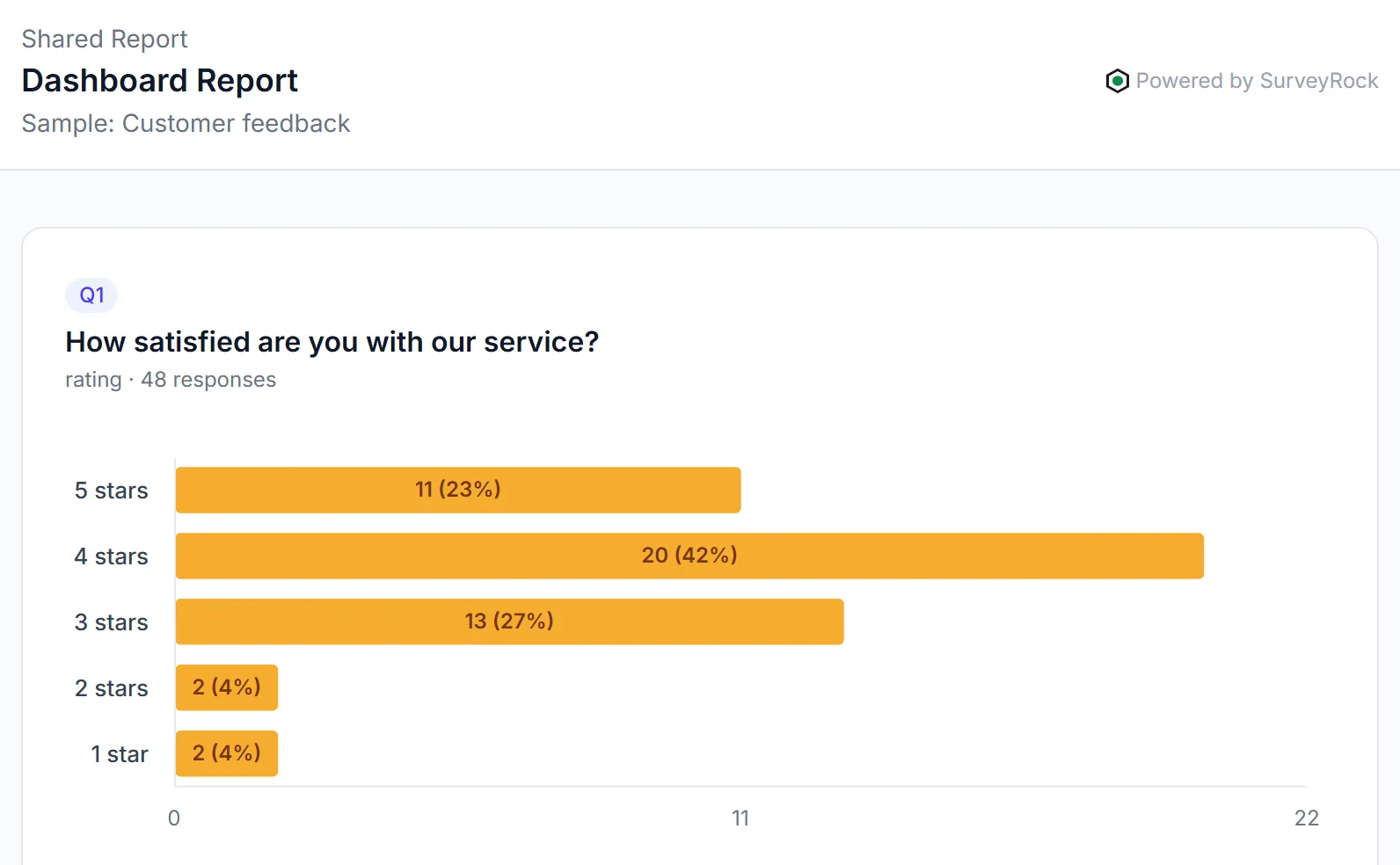
Section titled “What the other person sees”The link opens a read-only report of the results for each question, with no sign-in. If you chose Password, they enter it first. The report reads the results when it’s opened, so it stays up to date.
A few things to know:
- It covers all responses. A filter on your dashboard doesn’t carry into the link.
- It uses your published wording. The report shows your questions and choices as respondents see them, so edits you haven’t published don’t appear. A question or choice you’ve hidden leaves the report once you publish, and answers to a hidden choice still count towards the question’s total.
- Written answers aren’t included. A text question shows only how many people answered.
- Dates aren’t included. A date question shows only how many people answered, not the dates.
- Restricted questions are left out. Any question marked as restricted doesn’t appear.
To let someone explore the results or see individual answers, invite them to the workspace instead.
Turn a link off
Section titled “Turn a link off”- Click Share on the Response Dashboard.
- Under Active Links, click Revoke next to the link.
Anyone who opens that link afterwards is told it has been revoked. A link past its expiration date says it has expired.
A link also stops working if you delete the survey, or if your plan changes to one without sharing. It says the report is no longer available, and it works again when you restore the survey or move back to Team or above.
Example
Section titled “Example”Your managers want this quarter’s customer feedback, but they don’t need accounts. You click Share, choose Password, set an expiration date at the end of the quarter, and generate a link. You send the link and the password separately.
Troubleshooting
Section titled “Troubleshooting”Share shows a padlock. Sharing needs the Team plan or above.
I don’t see Share. It’s only on the Response Dashboard, and only for workspace Owners and Admins.
The link says Password Required. Enter the password you set. If it’s lost, revoke the link and create a new one.
The link says the report is no longer available. The survey was deleted, the plan no longer includes sharing, or the account is unavailable. Restore the survey or upgrade to bring the link back.