Change a survey's look
A survey’s look comes from its theme: its colors, fonts, background and spacing. Every plan can apply any of the 28 built-in themes. Changing a theme’s details needs the Team plan or above. You need permission to edit the survey.
| What you can do | Plan |
|---|---|
| Apply a built-in theme | Every plan |
| Hide SurveyRock branding, set a Favicon | Solo and above |
| Change a theme, add a logo or background image, save to My Themes, use Brand Kit | Team and above |
| AI Theme Generator, custom CSS | Growth and above |
| Custom fonts, brand guardrails, linked themes | Enterprise |
Open the Appearance editor
Section titled “Open the Appearance editor”-
On Home, click the survey’s name. The survey opens in Design.
-
Click Survey in the bar above the survey.
-
Click Appearance.
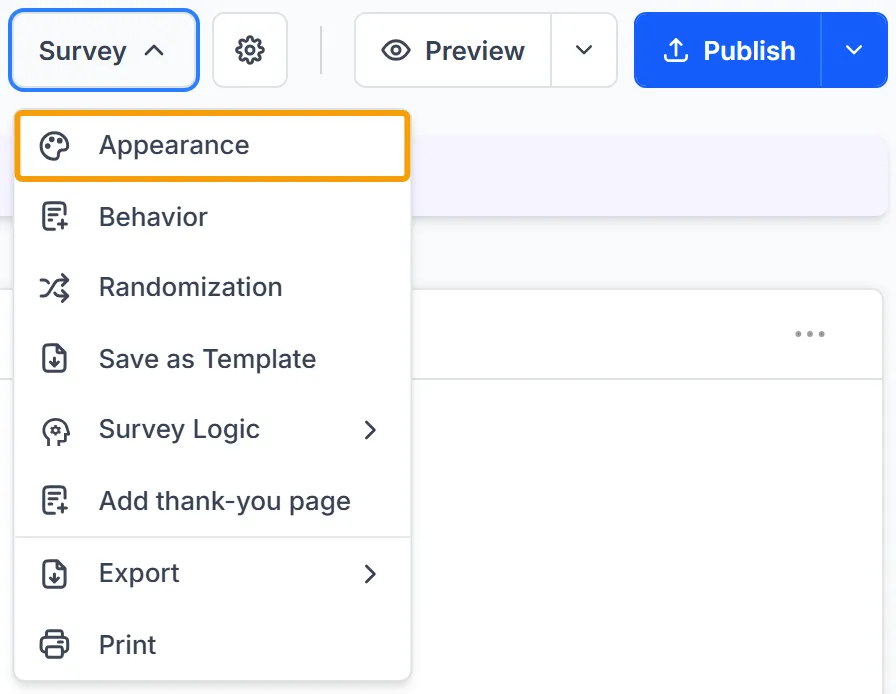
The editor shows a preview of your survey on the left and the controls on the right. You can also get here from Settings in the top bar: under Look & Feel, click Customize Theme.
Apply a theme
Section titled “Apply a theme”-
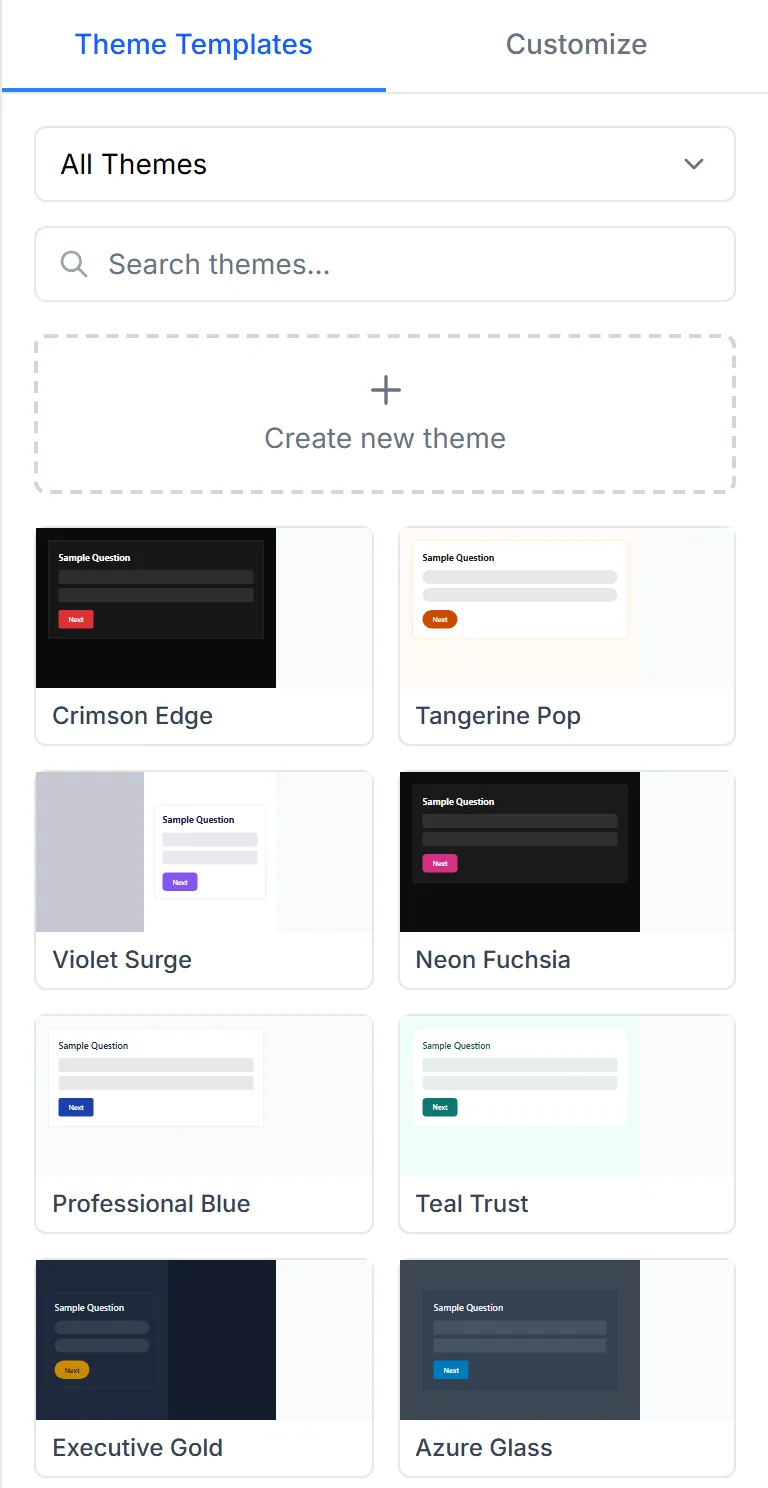
On the Theme Templates tab, find a theme. All Themes filters the list, and you can search by name.
-
Point at a theme to see it in the preview.
-
Click the theme to apply it. The message at the top changes to All changes saved.
-
Check it with Desktop, Tablet and Mobile above the preview. Preview at the top right opens the survey in a new tab.
-
Click the survey’s name at the top left to go back to Design.
A theme is saved as you apply it. If the survey is already published, respondents get the new look the next time a page loads, with no need to publish again.
Applying a different theme replaces the whole look, including any changes you made on Customize and any logo. To keep those, save them to My Themes first.
The preview shows the first two pages. If the survey has no questions yet, it shows sample questions.
Change the details
Section titled “Change the details”This needs the Team plan or above.
-
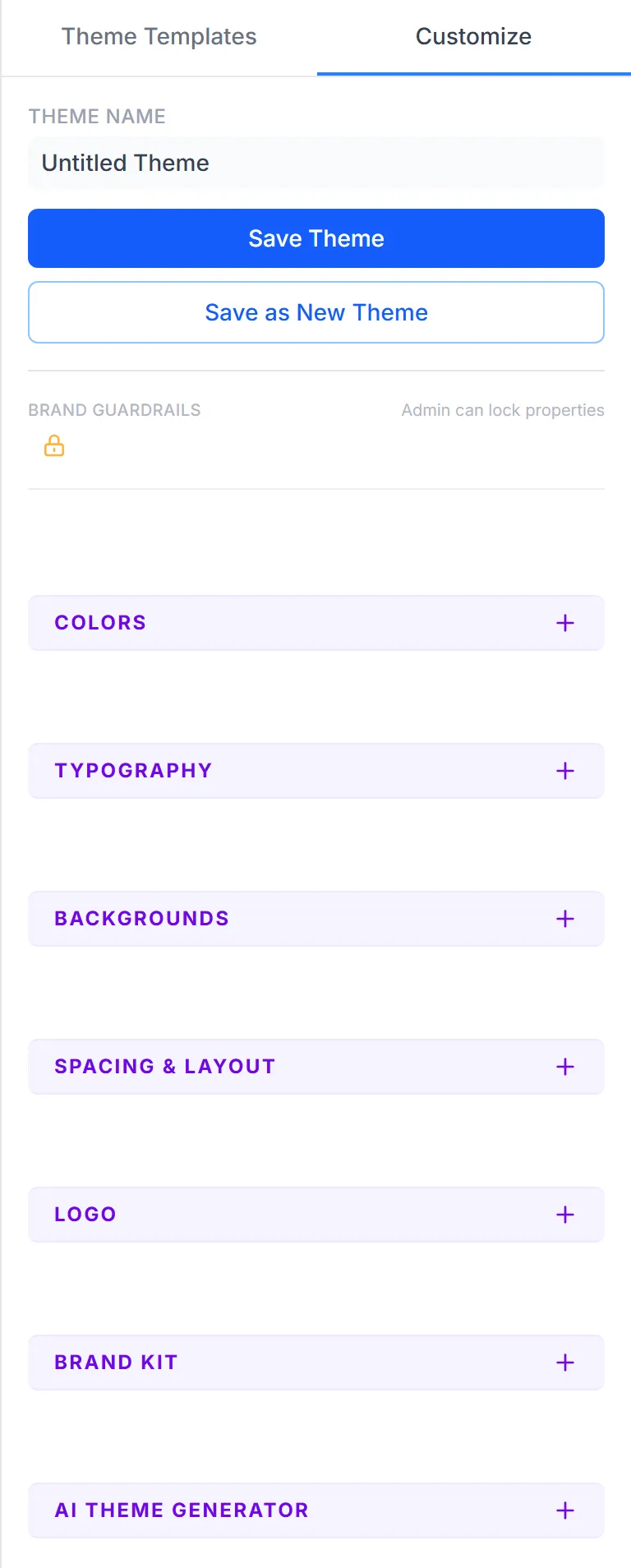
Click the Customize tab.
-
Open a section and make your change. The preview updates, and the change saves to this survey by itself.
| Section | What it changes |
|---|---|
| Colors | Card Style, Corner Style and the theme’s colors |
| Typography | Fonts and Text Scale |
| Backgrounds | Background Mode, gradients and a background image |
| Spacing & Layout | Layout Mode, Question Position, Density and Motion |
| Logo | Upload Logo, then Placement, Max Height and Alt Text |
| Brand Kit | Builds a theme from your Primary Color, Secondary Color and Brand Font |
| AI Theme Generator | Describe the look and click Generate Theme (1 AI Credit). Growth and above |
Reset All at the bottom sets every property back to its default.
Save a theme to use again
Section titled “Save a theme to use again”This needs the Team plan or above.
- On the Customize tab, click Save as New Theme.
- Type a name, then click Save.
The theme appears under My Themes on the Theme Templates tab, for every survey in the workspace. If you’re working on one of your own themes, Save Theme updates it.
You can also start from a built-in theme. Point at it on Theme Templates and click Customize. That makes a copy called “Copy of” and the theme’s name in My Themes, and opens it on the Customize tab.
Example
Section titled “Example”Your company wants its surveys to match its brand. In Appearance you try a few themes and click the closest one. On Customize you open Logo, click Upload Logo and fill in Alt Text, then adjust Colors. You click Save as New Theme and call it Company surveys. On your next survey, you choose My Themes in the filter and click it.
Troubleshooting
Section titled “Troubleshooting”I can’t find Appearance. It’s in the Survey menu in Design, not in the top bar.
The Customize controls are locked, or Customize on a theme card does nothing. Changing a theme needs the Team plan or above. On Free and Solo you can apply any built-in theme.
The message at the top says “Save failed.” Your role may not allow editing this survey, or your plan may not include what you changed. Refresh the page to see what’s saved.
My logo disappeared. Applying a different theme replaces the logo. Open Logo on Customize and upload it again.
I want to remove “Powered by SurveyRock.” Click Settings in the top bar. Hide SurveyRock branding is under Look & Feel, on Solo and above.