Offer a survey in more than one language
A survey can be offered in more than one language. You write it once, add the languages you want, and translate its texts. Each respondent sees the survey in one language and can switch from a menu.
Multi-language surveys are on the Growth plan and up. To translate a survey you need permission to edit it. If you can only view a survey, you can read its translations but not change them.
If your survey only needs one language, you don’t need this article. Set that language under Language & Messages in the survey’s settings. The survey builder overview has more on language settings.
Add a language
Section titled “Add a language”- Open the survey in Design, then click the Survey settings gear at the top. You can also choose Settings from the survey’s menu on the Home list.
- Choose Language & Messages. The Languages section is further down the same page.
- Under Add a language, choose a language and click Add.
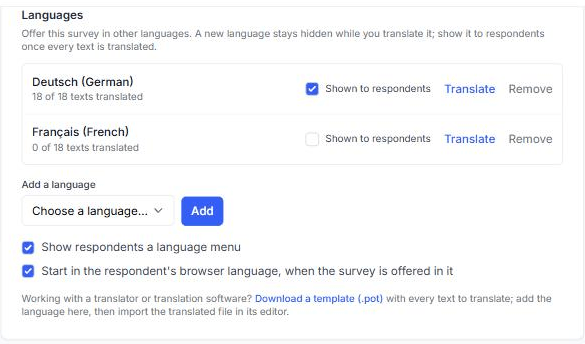
A new language starts hidden. Its Shown to respondents box is unticked, so nobody sees it while you translate. Each language in the list tells you how many of the survey’s texts are translated.
If your language isn’t in the list, choose Other language…. Enter its language tag (for example hr or pt-PT), choose which language SurveyRock’s own buttons and messages should use for it, and say whether it reads left to right or right to left.
SurveyRock’s own buttons and messages, such as Next and the validation messages, are available in the 21 languages in the list.
Translate in the editor
Section titled “Translate in the editor”Click Translate next to a language. The editor shows every text in the survey on the left, in the original language, with a box for its translation on the right. The texts come in the order they appear in the survey: its name, page titles, questions, help text, answer choices, row and scale labels, and thank-you pages.
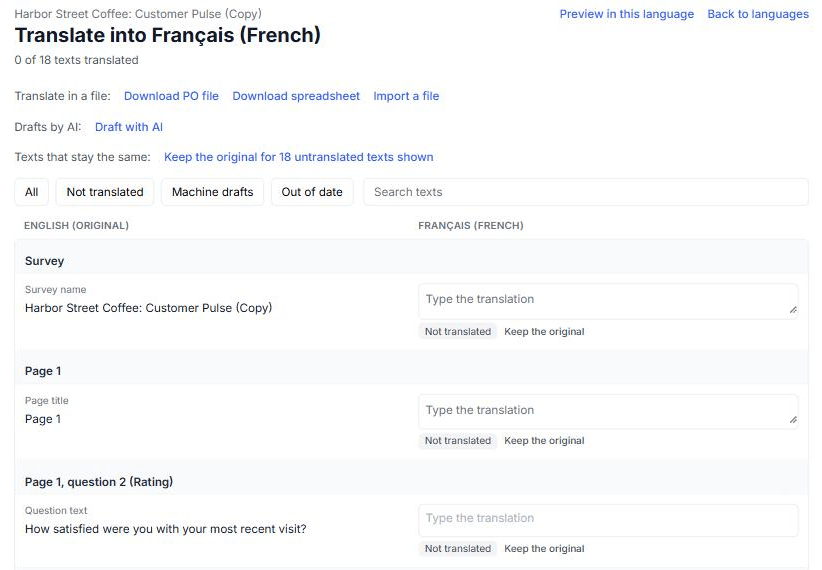
Click in a box and type. The translation saves when you click out of the box. Merge tags that insert an earlier answer appear in the text, so keep them in your translation.
Each text shows where it stands:
- Not translated: nothing has been entered yet.
- Machine draft: review it: an AI draft that nobody has accepted yet. See Draft translations with AI.
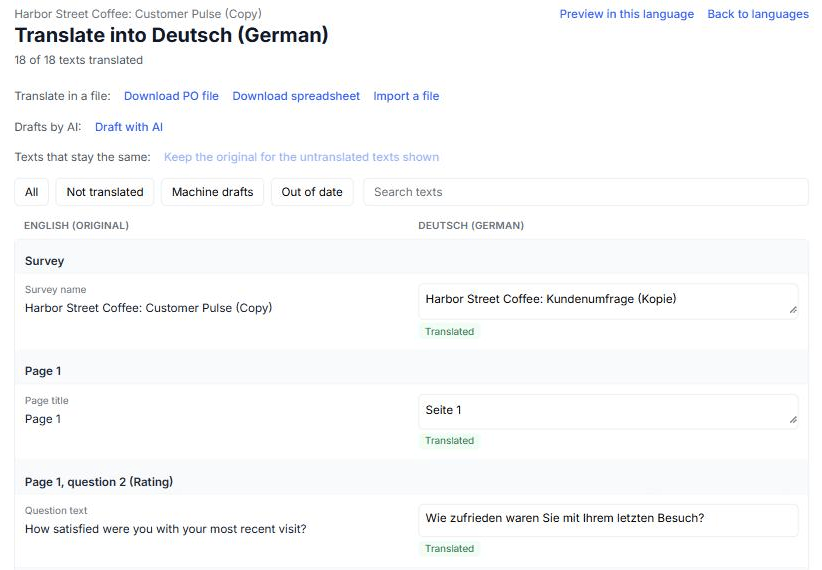
- Translated: someone typed or accepted this translation.
- Same as the original: you kept the original text as the translation.
- Original changed since: the original text was edited after it was translated.
A language that is finished looks like this:
To find texts, use the Not translated, Machine drafts and Out of date buttons above the list, or type in Search texts. All shows everything again.
Texts that stay the same
Section titled “Texts that stay the same”A brand name, a product code or “NPS” often reads the same in every language. Click Keep the original under the text to count the original as its translation.
To do this for many texts at once, filter or search the list, then click Keep the original for the untranslated texts shown. You’re asked to confirm before anything changes.
Preview a language
Section titled “Preview a language”Click Preview in this language to see the survey as respondents would. This works while the language is still hidden.
Translate in a file
Section titled “Translate in a file”If you work with a translator or translation software, translate outside SurveyRock and bring the result back.
- In the editor, click Download PO file for translation software, or Download spreadsheet for Excel.
- Translate the file.
- Click Import a file and choose the file.
SurveyRock checks the file first. It tells you what the file would add, change or leave alone, and lists every entry it can’t import with the reason. Nothing is saved until you confirm. You can import a .po file or a spreadsheet (.xlsx) exported from the editor.
Before you add a language, Download a template (.pot) in the Languages section gives you a file with every text to translate.
Draft translations with AI
Section titled “Draft translations with AI”Draft with AI writes first drafts of the texts you haven’t translated yet. It’s a starting point for you to read, not a finished translation.
- In the editor, click Draft with AI.
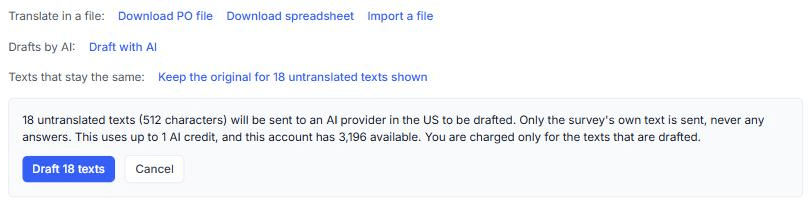
- Read the estimate. It says how many untranslated texts, and how many characters, will be sent to an AI provider, that only the survey’s own text is sent and never any answers, how many AI credits it uses, and how many you have.
- Click the button that reads Draft and the number of texts, for example Draft 18 texts, to go ahead, or click Cancel. You’re charged only for the texts that are drafted.
The drafts appear in the editor marked Machine draft: review it. A draft doesn’t count as translated until a person accepts it:
- Edit the text. Your version counts as translated.
- Click Accept as it is under a draft you’re happy with.
- Click Accept all drafts to accept every draft at once. SurveyRock asks you to confirm, because the drafts then count as translated without being read one by one, and the survey’s history records it.
Draft with AI uses AI credits from your account. Translating by hand, in the editor or in a file, doesn’t use credits. A workspace admin can turn Draft with AI off for the whole workspace in the workspace settings.
Quota and link messages
Section titled “Quota and link messages”If the survey has a quota with its own message, or a web link with a response limit or a message for people who already answered, those messages you wrote appear in the editor too, under their own headings. They are marked applies as soon as it is saved, not at publish, because respondents read them live.
Translate them like any other text. Where one isn’t translated, a respondent reading that language is shown SurveyRock’s standard message in their language instead of yours.
Show a language and publish
Section titled “Show a language and publish”When a language is ready, tick Shown to respondents next to it in the Languages section.
Before a survey can be published, every text of every language shown to respondents must be translated, and none may still be a machine draft. If something is missing, publishing tells you which language and how many texts are still open, and you can either finish them or hide the language and publish without it.
A translation whose original has changed since publishes with a warning rather than stopping you, because the change may have been a typo fix.
Two options in the Languages section decide how respondents get a language. Both are on when you add your first language:
- Show respondents a language menu puts a language menu at the top of the survey.
- Start in the respondent’s browser language, when the survey is offered in it opens the survey in the language the respondent’s browser asks for, if you offer it.
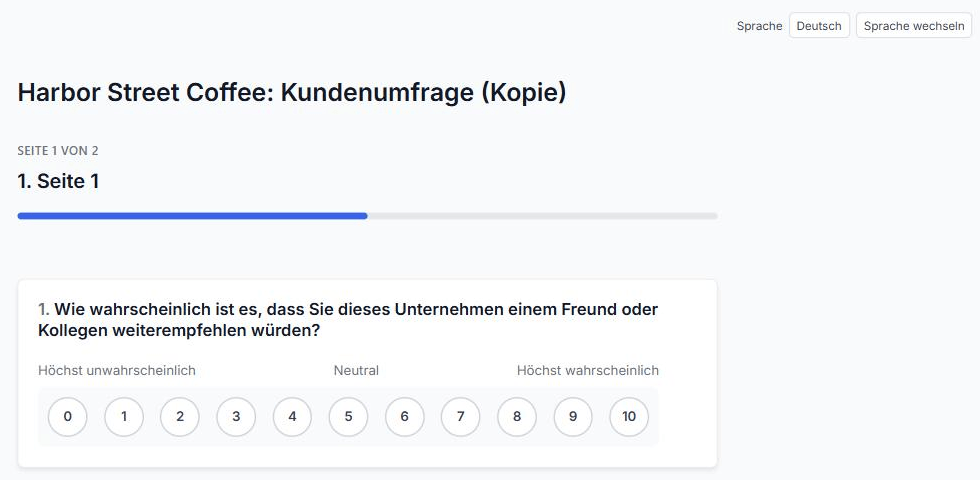
SurveyRock picks a respondent’s language in this order, using the first that applies:
- The language in the survey link. Add
?lang=deto the end of the link to open it in German. - The language the respondent chose before, for example earlier in the same response.
- The respondent’s browser language, if the second option above is on.
- The survey’s main language.
Only languages that are shown to respondents are offered. A hidden language is never picked.
Change the original after translating
Section titled “Change the original after translating”If you edit an original text after translating it, its translation is marked Original changed since and appears under the Out of date filter. Check it and update it, or leave it. Publishing warns you but doesn’t stop you.
Results by language
Section titled “Results by language”Each response records the language the respondent saw. In Responses, add a Language filter under Advanced Filters to look at one language. Exports include a Language column when responses recorded one.
Answers to choice questions are stored by choice, so they combine across languages. Open-text answers aren’t translated: they stay as the respondent wrote them.
Remove a language
Section titled “Remove a language”Click Remove next to a language in the Languages section. This deletes that language’s translations, and it can’t be undone. SurveyRock asks you to confirm first.