Filter your results
Filters narrow the Response Dashboard to the responses you want to look at. Filtering is on Team and above. On Free and Solo the filter bar is shown locked, with Upgrade to filter.
Filter the dashboard
Section titled “Filter the dashboard”- Open the survey and click Responses in the top bar. If you need the steps, see See your survey’s results.
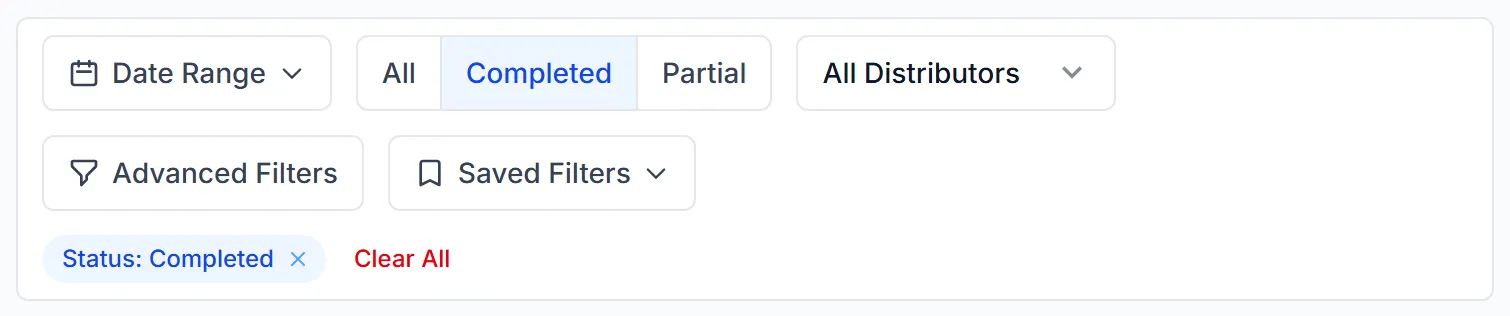
- Use the filter bar above the question cards:
- Date Range: choose Today, This week, This month or Custom range, then click Apply.
- All, Completed or Partial: choose finished responses, unfinished ones, or both.
- All Distributors: choose one link or campaign.
The totals and every question card change to match. Each filter you apply shows as a label under the bar.
Clear a filter
Section titled “Clear a filter”Click the × on its label to remove one filter, or Clear All to remove them all.
A filter stays on as you move between pages and reload, for as long as that browser tab is open. A new tab starts with no filters.
Use more than one condition
Section titled “Use more than one condition”- Click Advanced Filters.
- Click Add Filter.
- In the first menu choose Status, Distributor, Contact, Date or Question, then fill in the box beside it.
- To add more, click Add condition, or Add Another Filter Group for a separate set. Once there’s more than one, you can choose between All (AND) and Any (OR).
- Click Apply Filters.
Filter by how someone answered
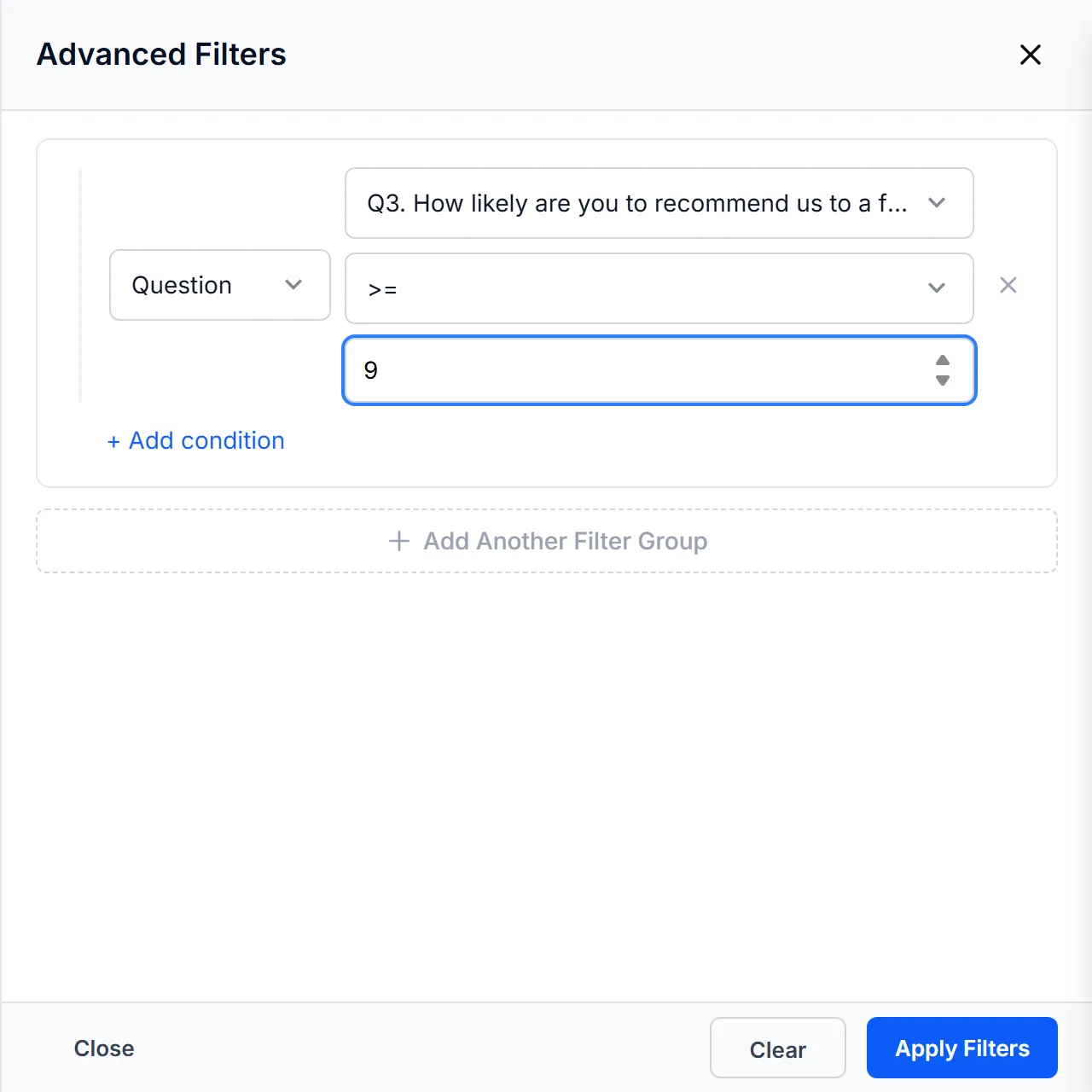
Section titled “Filter by how someone answered”A Question condition shows only the people who answered a certain way, such as everyone who gave a 9 or 10.
-
Click Advanced Filters, then Add Filter.
-
In the first menu choose Question.
-
Choose the question.
-
Choose a comparison, then fill in what it asks for.
-
Click Apply Filters.
What you can choose depends on the question:
| Question | What you choose |
|---|---|
| NPS, Rating | A comparison and a number |
| Slider | A statement, a comparison and a number |
| Constant Sum | An item, a comparison and a number |
| Multiple Choice, Image Choice | = or ≠, and one of the answers |
| Yes or No | = or ≠, and Yes or No |
| Text Input, Email | contains or starts with, and some text |
| Date | on, before, after or between, and the dates |
| Matrix | row equals, a row and a column |
| Ranking | rank equals, an item and its rank |
| Group Rank | group equals, an item and its group |
Every question also offers is empty and is not empty, which find the people who skipped it and the people who answered it. Those are the only two choices for Photo Submission, Video Response, Audio Response, Signature, File Upload and MaxDiff.
A few details change what gets counted:
- ≠ counts only people who answered the question. To find those who skipped it, use is empty.
- between includes both dates. before and after leave out the date you choose.
- A date with a time counts on its day, so on finds every time that day.
Save a filter
Section titled “Save a filter”On Growth and above, you can keep a filter you use often. Open Saved Filters and choose Save current filter as…. Your saved filters are listed in the same menu.
Example
Section titled “Example”You ran a customer survey through a newsletter link and an email campaign, and you want to see only last month’s finished responses from the campaign. You set Date Range to the month, choose Completed, and pick the campaign under All Distributors. The totals now count just those responses.
Troubleshooting
Section titled “Troubleshooting”The numbers look too low. A filter may still be on, including one you set earlier in the same tab. Look for a label under the filter bar and click Clear All.
The filter bar is greyed out. Filtering needs the Team plan or above.
A message says a filter has been removed. It came from an older link or saved filter that the page can’t apply. Set it up again in Advanced Filters.
Does a filter change my export? A PDF report uses the dashboard’s current filter. For CSV, Excel and SPSS files, see Export your results.