See your survey's results
Every survey keeps its own results under Responses. The Response Dashboard and the Respondent List are on every plan. You need permission to view the survey’s responses. Without it, the response count isn’t a link and the row menu doesn’t show View results.
Open your results
Section titled “Open your results”- Sign in at app.surveyrock.com. You start on Home, the list of your surveys.
- In the survey’s row, click the response count.
The Response Dashboard opens.
There are three other ways to get there:
-
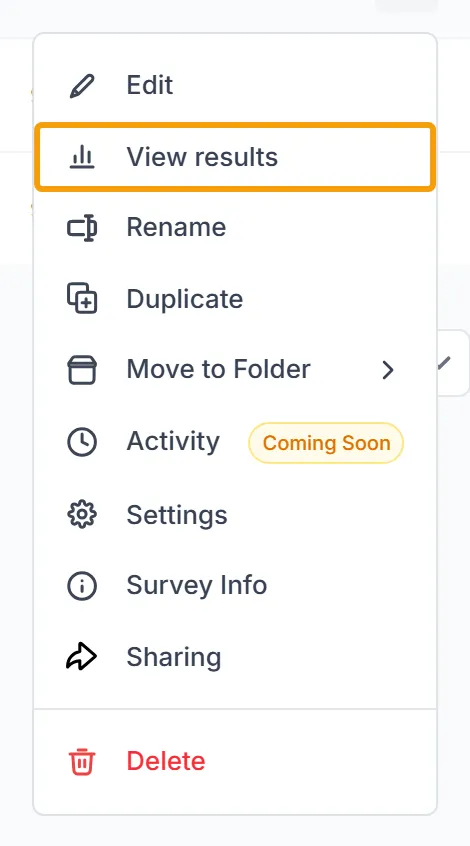
From the row menu: on Home, click the three dots at the end of the survey’s row, then View results.
-
From card view: click the blue number beside Responses.
-
From inside a survey: click Responses in the top bar. On a phone, tap the menu button at the top right first.

Read the dashboard
Section titled “Read the dashboard”Four cards at the top give the totals: Total Respondents, Completed, Completion Rate and Avg. Completion Time.
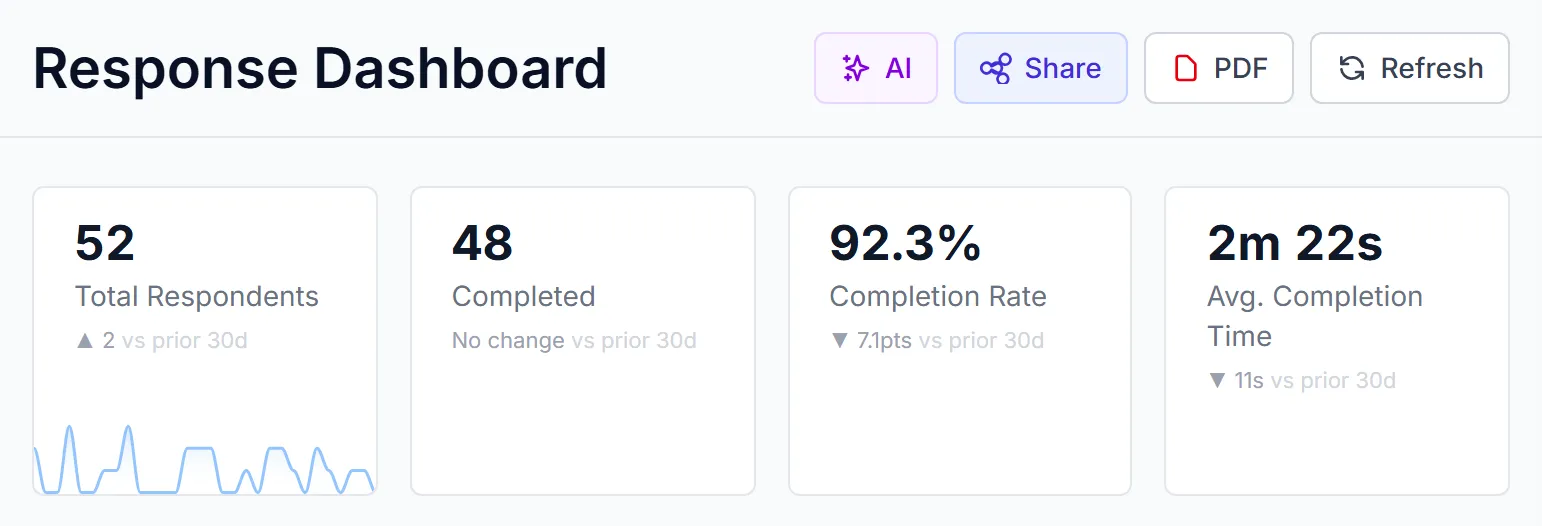
The page doesn’t update by itself. To see answers that came in while it was open, click Refresh at the top right.
Further down, each question has its own card with a chart.
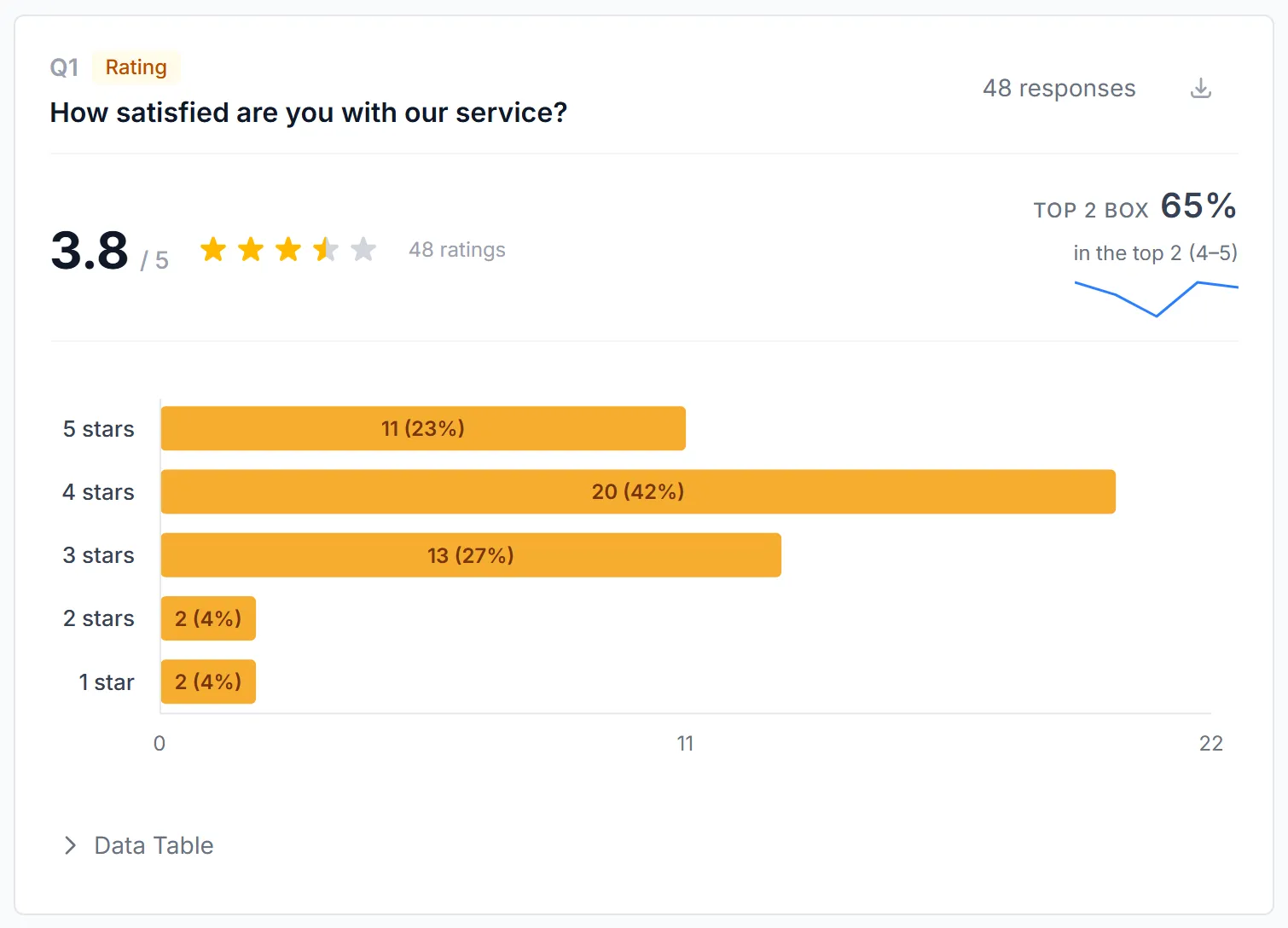
For what each chart and statistic means, see Reading your results.
See each person’s answers
Section titled “See each person’s answers”- In the left menu, click Respondent List.
- Click a row to open that person’s answers.
To download everything as a file, see Export your results.
Example
Section titled “Example”Your team votes on a new meeting time, and voting closes on Friday. On Friday, open the survey and click Responses. Total Respondents shows how many people voted, and the question’s card shows the count for each option. To keep a copy, export it from the Respondent List.
Troubleshooting
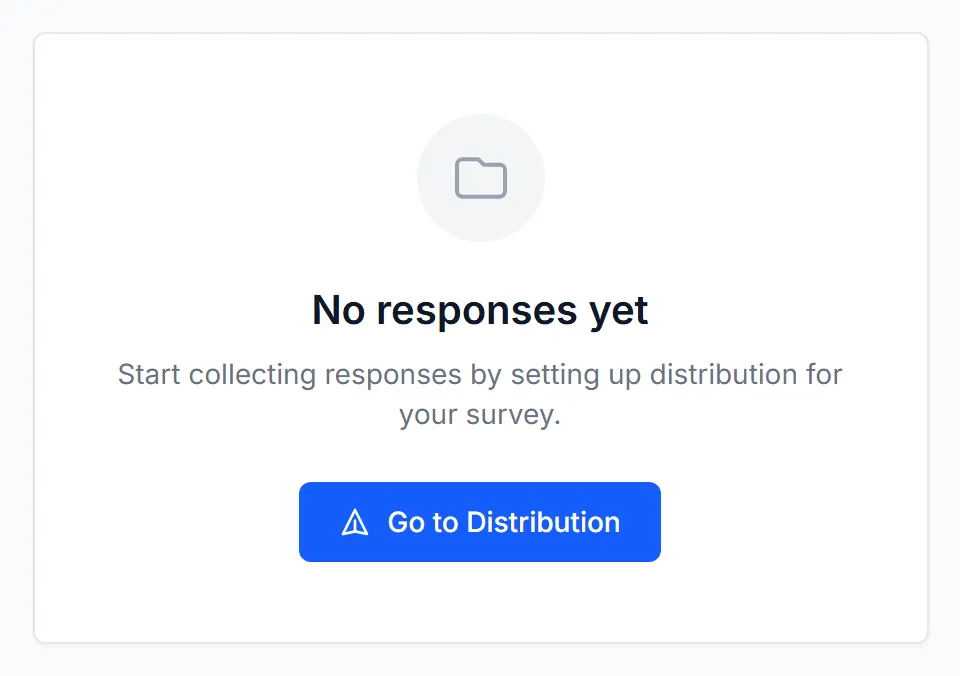
Section titled “Troubleshooting”The page says “No responses yet.” Nobody has answered, or the survey isn’t reaching anyone. Click Go to Distribution to check that a link is active. Publishing and your first responses has the steps.
A message says more responses “require an upgrade to view.” Your survey collected more answers than your plan shows. They are kept, not deleted. Click Unlock responses to see your options.
I clicked the survey and landed in the editor. That is expected. A survey’s name opens Design. Use Responses in the top bar, or go back to Home and click the response count.