Show results after answering
After someone finishes your survey, they can see how people have answered so far, under your thank-you message. It suits polls, event feedback and team votes, where seeing the result is part of the reason to answer. It’s on Team and above, and you turn it on for each link.
Turn it on
Section titled “Turn it on”-
Open the survey and click Distribute in the top bar.
-
Click the … menu on the link and choose Edit Settings.
-
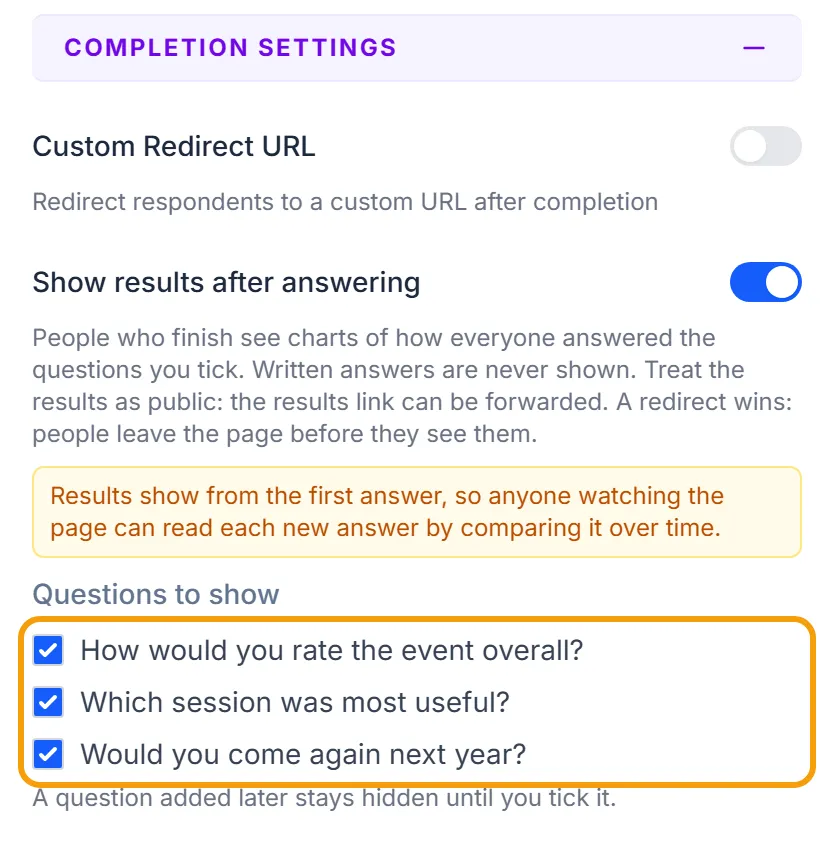
Under Completion Settings, turn on Show results after answering.
-
Under Questions to show, untick anything you’d rather keep to yourself. Every question that can be shown starts ticked.
-
Click Save.
Each link has its own switch. If more than one link has it on, the charts count the answers from all of them, including answers collected before you turned it on.
What people see
Section titled “What people see”Once someone finishes, a section called How people answered appears under the thank-you message, with a chart for each question you ticked:
- Choice and yes/no questions show each answer with its percentage.
- Rating questions show the average and how the ratings spread.
- NPS questions show the score and the share of Promoters, Passives and Detractors.
- Matrix questions show a chart for each row.
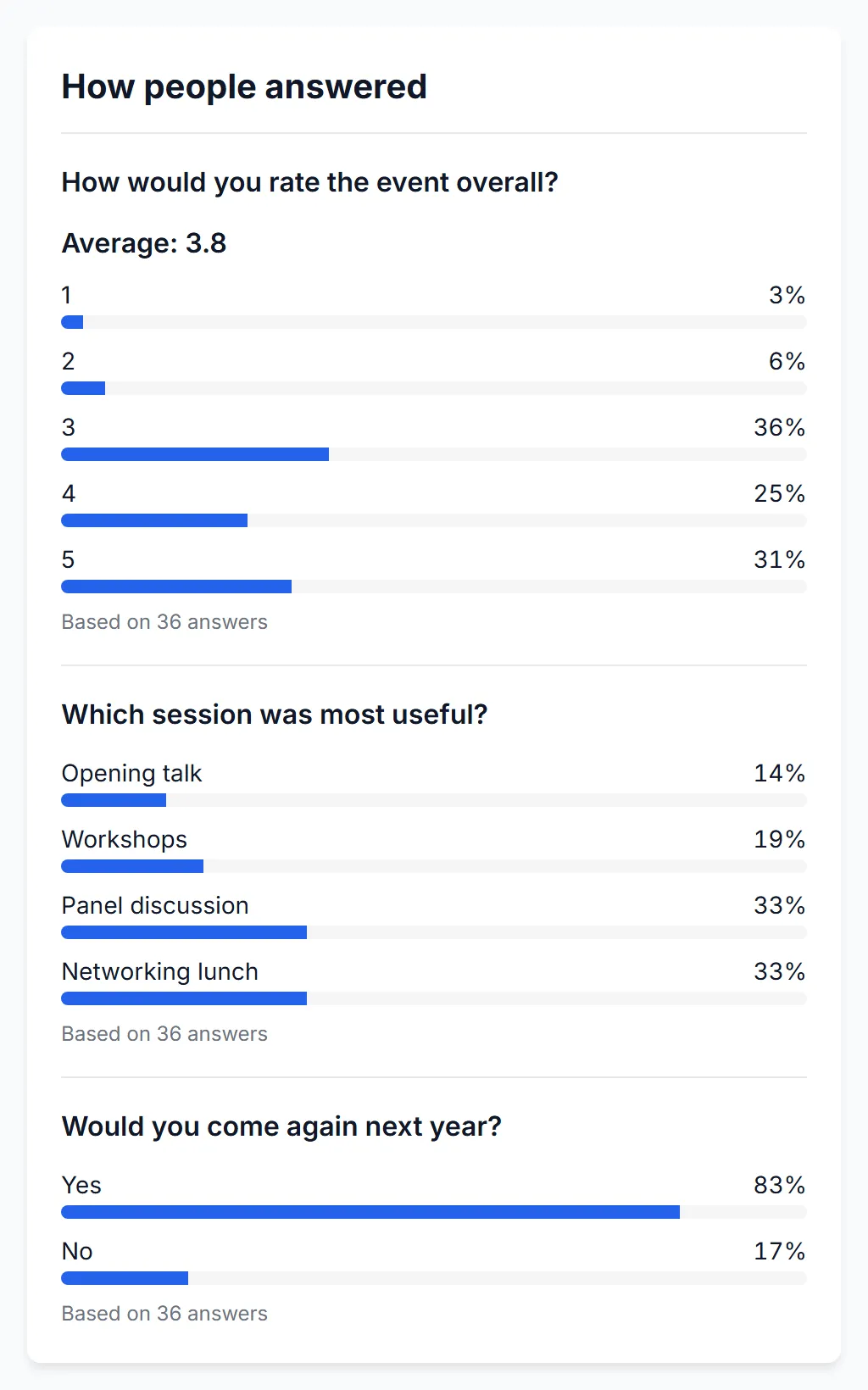
Each chart says how many answers it’s based on. The figures can take up to five minutes to catch up with new answers, and the page reads them again each time it’s opened. Whoever finished can reload the page or come back to the address later. It stays good for about a month.
If your link allows one response per person, someone who comes back goes straight to the results instead of the “already responded” message. Your own address for blocked respondents still comes first.
Which questions can be shown
Section titled “Which questions can be shown”You can show multiple choice, image choice, yes/no, rating and NPS questions, and matrix questions with one answer per row.
These can’t be shown, and don’t appear in the list:
- Written answers, dates, files and sliders
- Questions with display logic
- Questions that carry their choices forward from another question
- Questions on a loop page
- Questions marked as restricted
A question you add later starts hidden. Open Edit Settings and tick it to show it.
Anonymous surveys
Section titled “Anonymous surveys”On an anonymous survey, a question stays hidden until it has 5 answers, or more if you’ve raised the survey’s minimum group size. Each row of a matrix follows the same rule. Until then, that chart says results will appear once a few more people have answered.
After that, a question’s figures move only once 5 more people have answered it, so nobody can work out a single person’s answer by watching the page. They move in steps of the same size if you’ve raised the minimum. This makes it harder to read one person’s answer, but it isn’t a guarantee: if only a few people answered and they talk to each other, they may still be able to work it out.
Other surveys show results from the first answer, so anyone watching the page could read each new answer as it arrives. The settings panel reminds you of this when you turn it on.
Things to know
Section titled “Things to know”- Treat the results as public. The results address doesn’t name anyone, but it can be forwarded, and anyone holding it can open it.
- A redirect wins. If your survey sends people to another page when they finish, they leave before they see the results.
- The results stop when the link does. Pausing the link, turning the switch off, deleting the survey, or moving below Team stops them straight away, including for addresses already handed out. A survey that closed on its end date or filled its quota keeps showing them.
- Website embeds can’t show results. The switch isn’t offered on an embed.
- Workspaces with PHI mode on can’t show results. The panel says so instead of offering the switch.
- Preview answers never count. In preview, a note marks where the results will appear.
Using the API
Section titled “Using the API”Set completion.showResults.enabled and completion.showResults.questions (a list of question ids) in a distributor’s settings. The list you send replaces the stored one.