Create a survey
Every new survey starts at Create Survey. You need a role that can create surveys: a Viewer doesn’t see the button. The Free plan allows up to 10 questions in a survey, and paid plans have no limit.
Choose how to start
Section titled “Choose how to start”-
Sign in at app.surveyrock.com. You start on Home.
-
Click Create Survey at the top right.
-
Choose how you want to start.
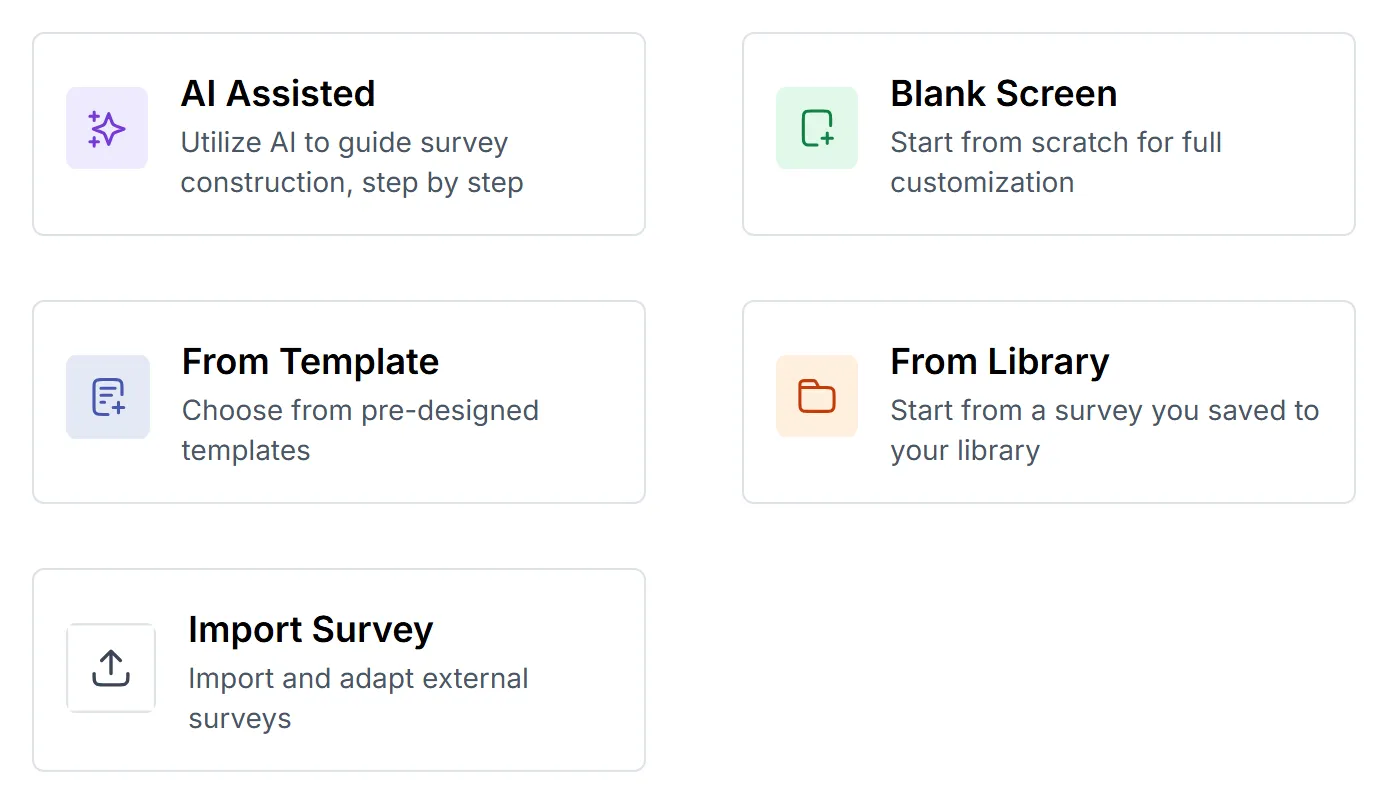
| Choice | What it does |
|---|---|
| AI Assisted | Drafts a survey from a description. See Generate a survey with AI |
| Blank Screen | Starts an empty survey |
| From Template | Copies a ready-made survey into your workspace |
| From Library | Starts from a survey you saved to your library |
| Import Survey | Brings in a survey from a .docx, .txt or .srk file |
Start from a blank page
Section titled “Start from a blank page”-
Choose Blank Screen.
-
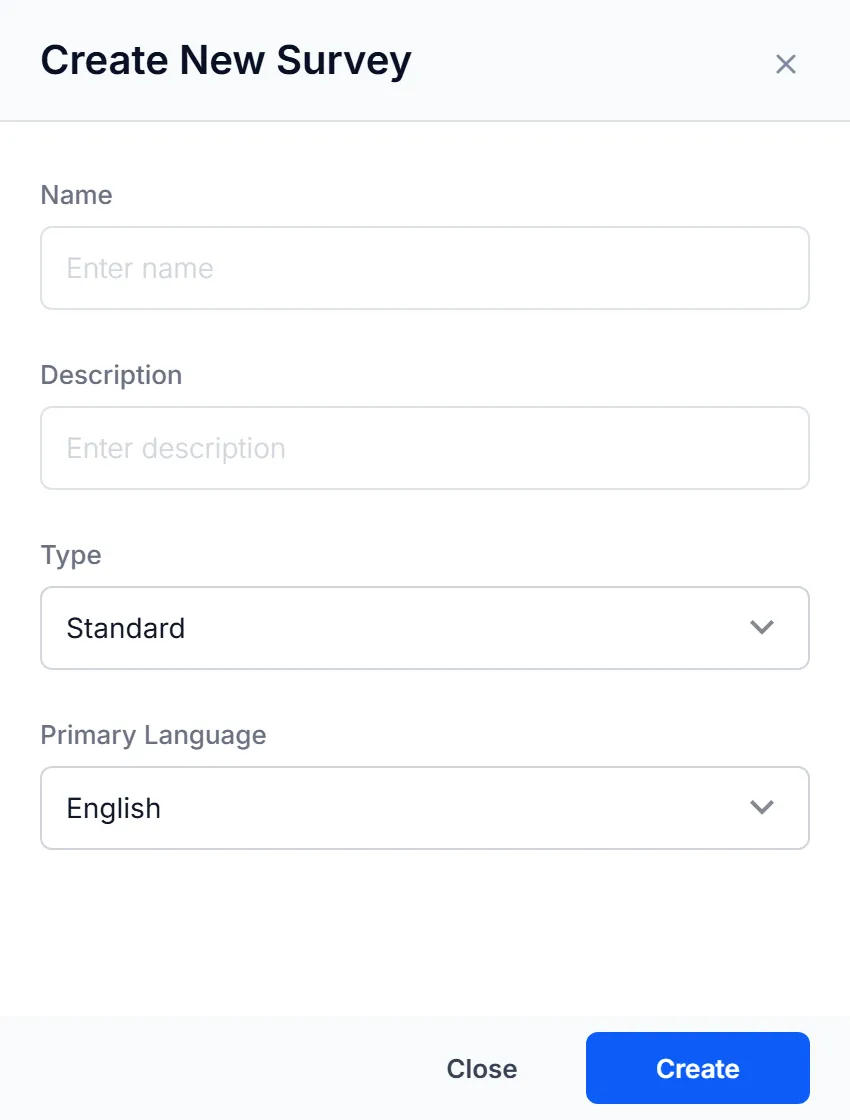
Enter a Name. The Description is optional, and Type and Primary Language have defaults you can keep.
-
Click Create. The survey opens in Design, the editor.
Start from a template
Section titled “Start from a template”- Choose From Template.
- Find a template by searching, or by choosing a category on the left. Click Preview to look through one.
- Click Use Template, then click Create Survey in the box that opens.
The copy opens in Design with “Copy” at the end of its name. You can change anything in it. To rename it, open its menu on Home and choose Rename.
Add your questions
Section titled “Add your questions”-
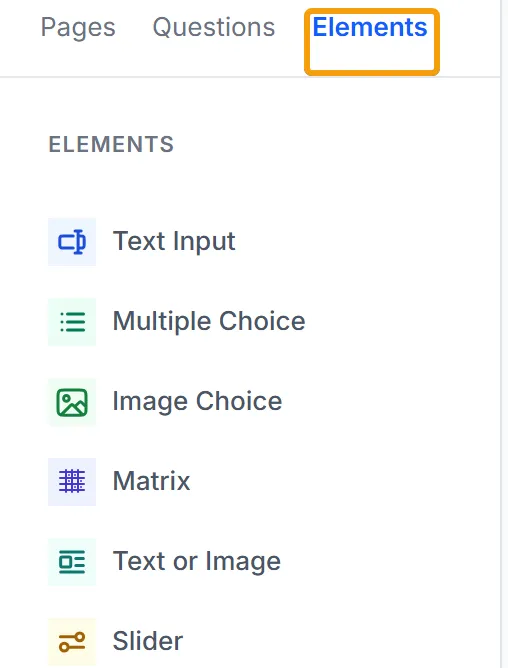
In Design, select the Elements tab in the left sidebar.
-
Double-click a question type to add it to the end of the page, or drag it to the place you want.
-
Click the new question on the canvas and type your question.
Question types explains what each type does and the settings it offers.
Check it and send it out
Section titled “Check it and send it out”- Click Preview at the top right to see the survey as a respondent does.
- When it’s ready, publish it and share the link.
Example
Section titled “Example”You want to know how your team feels about a new way of working. On Create Survey you choose From Template, pick Employee Engagement on the left, and click Preview on a few. You click Use Template on the closest one, delete the questions you don’t need, and add one of your own from Elements.
Troubleshooting
Section titled “Troubleshooting”Clicking Create does nothing. The survey needs a Name.
I can’t see Create Survey. Your role in this workspace doesn’t allow it. Ask a workspace admin to change your role.
I can’t add another question. The Free plan stops at 10 questions in a survey.