HubSpot
Connect your HubSpot account to SurveyRock once. After that, a workflow can write a survey response to the HubSpot contact: update properties, add a note, or create a task or a ticket. HubSpot is on Pro and up.
Connect HubSpot
Section titled “Connect HubSpot”You need to be an owner or admin of the workspace. In HubSpot, you need to be a Super Admin or have the HubSpot Marketplace access permission.
-
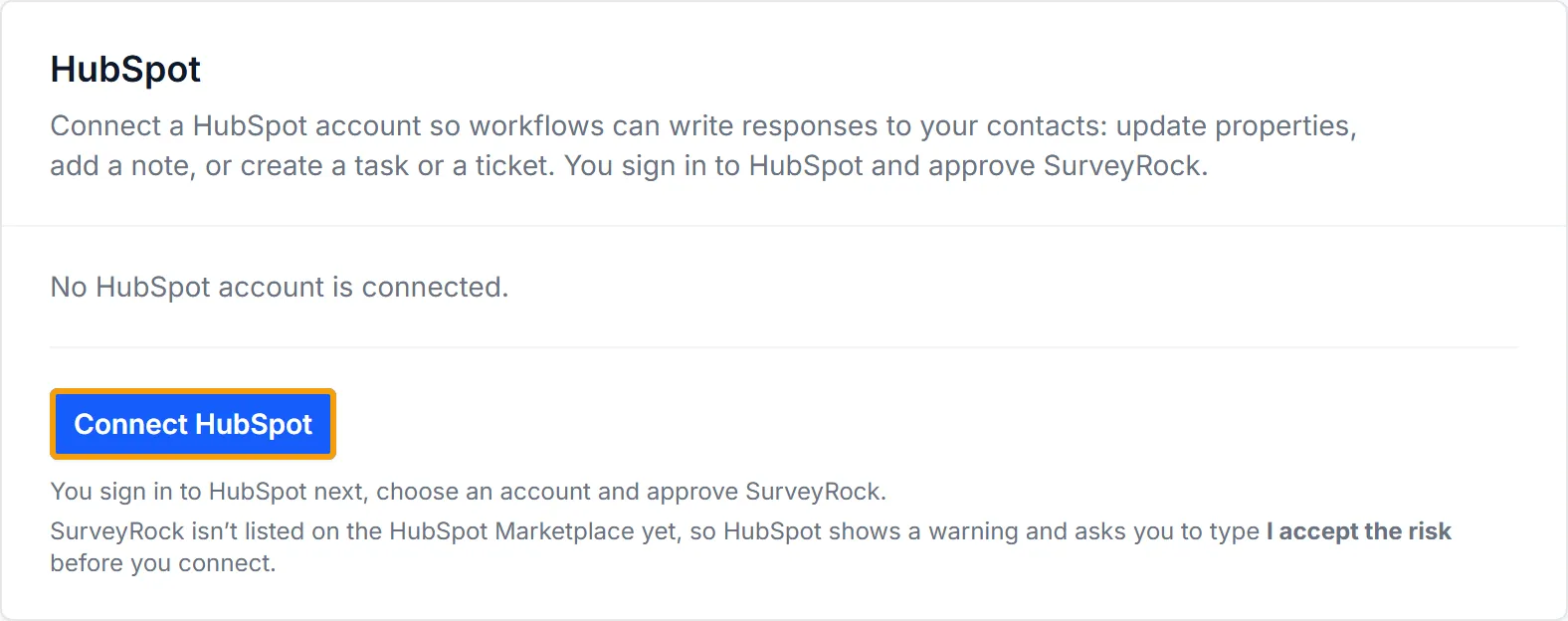
In SurveyRock, go to Workspace Settings, Integrations, HubSpot, and click Connect HubSpot.
-
Sign in to HubSpot if it asks, and choose the account to connect.
-
Check what SurveyRock asks for, and click Connect app.
-
SurveyRock isn’t listed on the HubSpot Marketplace yet, so HubSpot shows a warning. If it asks you to confirm, type I accept the risk and click Connect.
HubSpot sends you back to SurveyRock, and the card shows the account as connected.
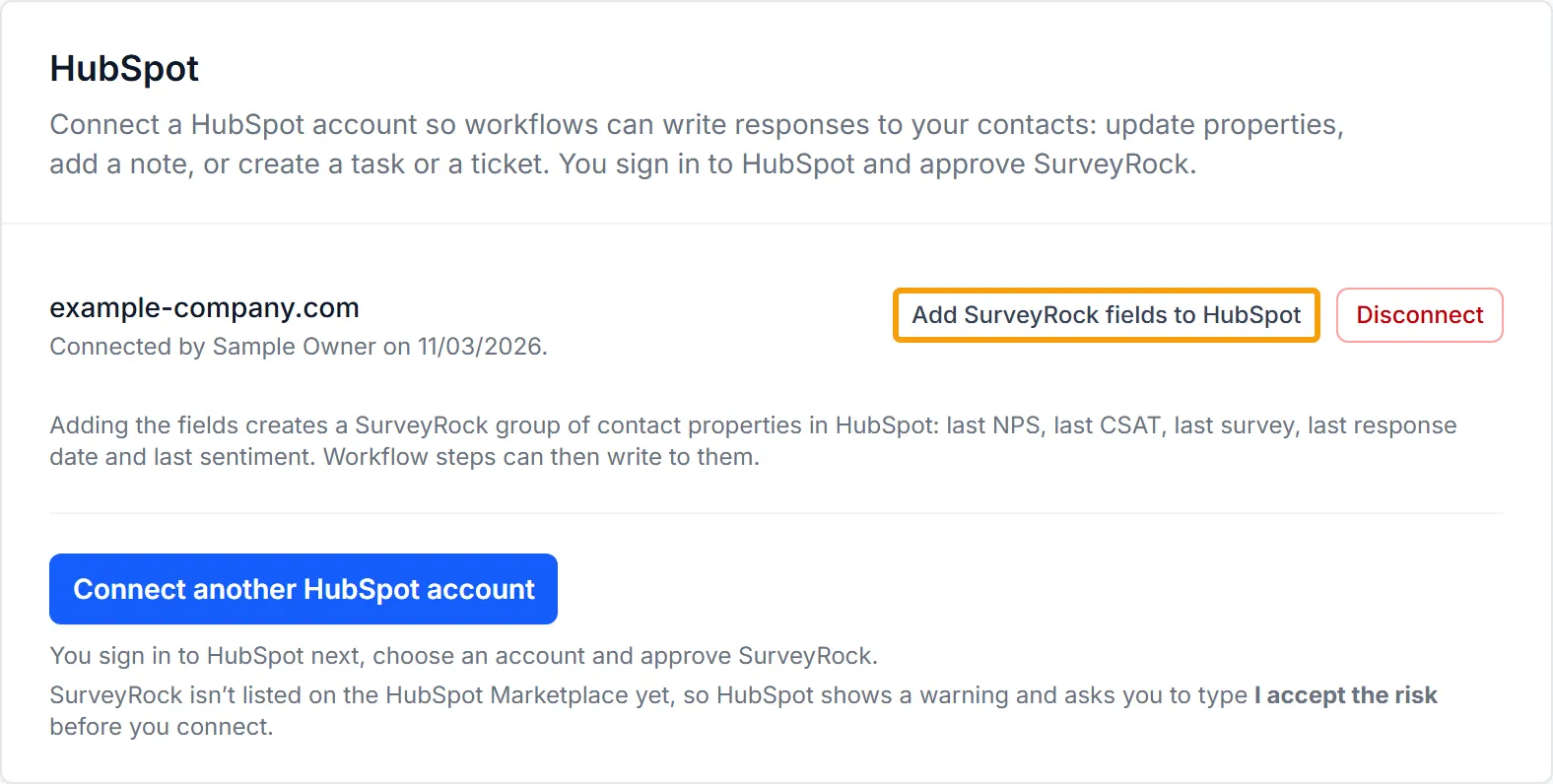
There is no API key to copy: you approve SurveyRock in HubSpot, and we store the access HubSpot gives us encrypted.
SurveyRock asks HubSpot for permission to read and change contacts and tickets, read and change contact properties, read ticket properties, and see your HubSpot users so a task or ticket can have an owner. Notes and tasks come under the contact permissions. It doesn’t ask for deals or companies.
You can connect more than one HubSpot account to the same workspace with Connect another HubSpot account. Each workflow step picks the account it uses. If you work with clients, each client’s workspace connects its own account.
Add the SurveyRock fields
Section titled “Add the SurveyRock fields”This step is optional, and it’s the quickest way to get a score onto the contact record. On the connected account, click Add SurveyRock fields to HubSpot. It creates a SurveyRock group of contact properties:
- SurveyRock last NPS
- SurveyRock last CSAT
- SurveyRock last survey
- SurveyRock last response date
- SurveyRock last sentiment
The fields start empty. A workflow step fills each one you add to it, so nothing appears on a contact until you map it. Last sentiment takes the label from an AI step that classifies sentiment earlier in the workflow. Clicking the button again is safe.
For SurveyRock last response date, use the tag button and pick Completed At: it fills with the time the response was submitted.
Write to HubSpot from a workflow
Section titled “Write to HubSpot from a workflow”Add an Action step to a workflow and choose HubSpot Contact. Pick the Account, then choose What to do:
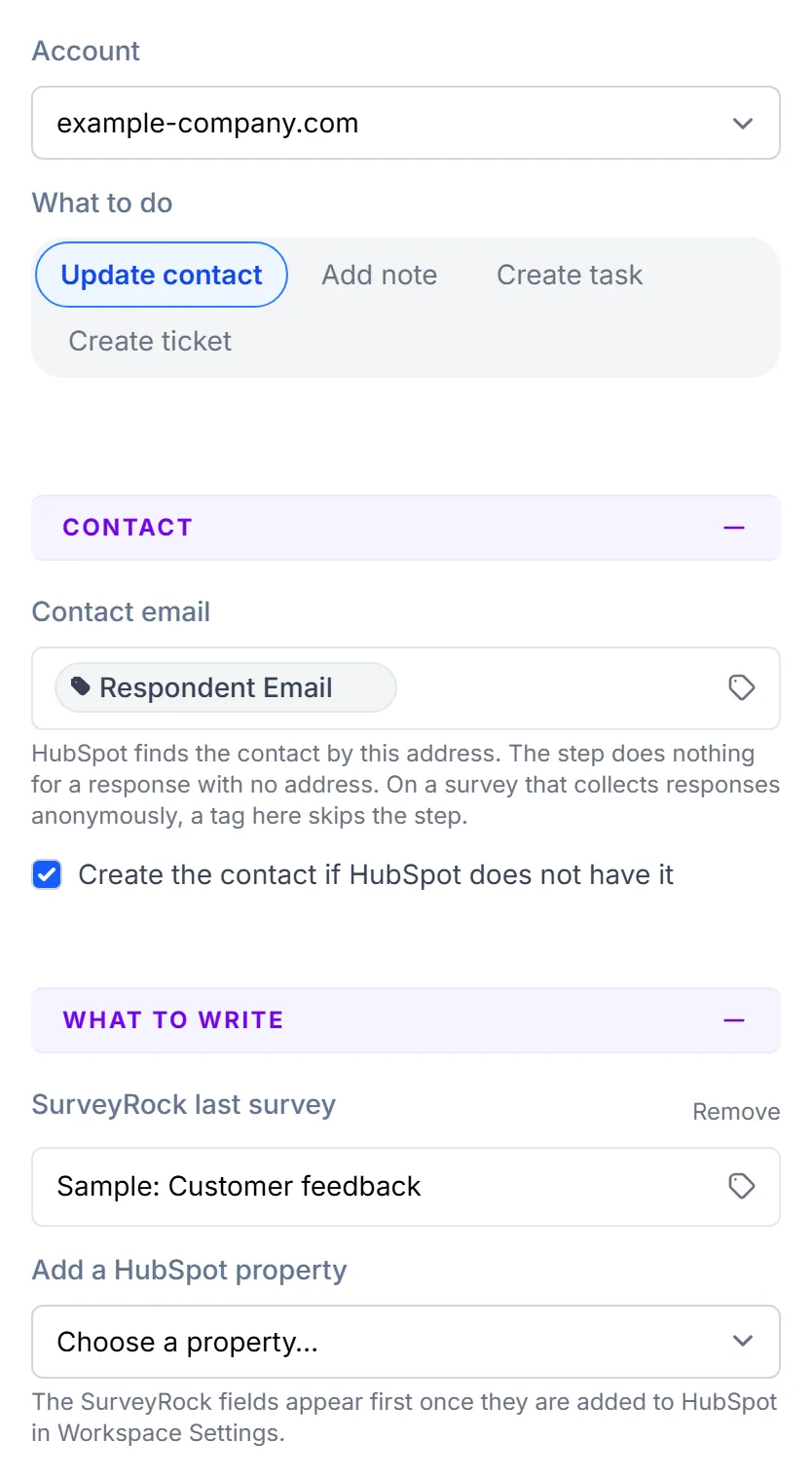
- Update contact. Under Add a HubSpot property, choose a property and fill it in. The SurveyRock fields appear first. You can write to your own contact properties too, except the email address and the contact owner. A value that comes out empty is skipped, so it doesn’t blank what HubSpot already holds.
- Add note. Add a note to the contact.
- Create task. Set the Task title, optional Notes and Due in (days), which starts at 2. The Owner is the contact’s owner unless you choose someone else. If the contact has no owner, the task has none.
- Create ticket. Set the Subject, an optional Description, the Pipeline and the Status. The ticket is linked to the contact, and the Owner works the same way as for a task.
Every text field takes merge tags from the tag button, so a note can quote the answer that started the workflow. A later step can use the HubSpot contact ID, and the ID of the note, task or ticket.
Workflows themselves start on Team. The HubSpot step is on Pro and up.
Which contact the step uses
Section titled “Which contact the step uses”Contact email decides which HubSpot contact the step acts on. Use the tag button and pick Respondent Email, which comes from the SurveyRock contact linked to the response, as with an email invitation. If you collect the address in the survey, pick that answer instead.
With Respondent Email, a response with no linked contact has no address, so the step does nothing for it and the workflow carries on. That includes every response to a survey with Collect responses anonymously turned on.
On an anonymous survey, mapping an answer doesn’t get round this: a step whose Contact email comes from a tag is skipped, so an anonymous response is never put on a person’s record, and the workflow carries on. The run’s history says why. A fixed address you type is used on any survey, because it’s the same for every response.
Create the contact if HubSpot does not have it is on by default. Turn it off and the step does nothing for an address HubSpot doesn’t know.
Your HubSpot automation still runs
Section titled “Your HubSpot automation still runs”HubSpot treats these changes like any others. A new contact or a changed property can enroll someone in your HubSpot workflows, so check those before you publish a workflow that writes to contacts.
Testing a HubSpot step
Section titled “Testing a HubSpot step”Test on a workflow has two modes. Simulate, the default, runs every step without sending anything: a HubSpot step shows what it would write and leaves HubSpot as it is. Live runs the workflow once for real with your test payload, so a HubSpot step changes a real contact. Before a Live run starts, SurveyRock lists each step that will change something in HubSpot, and runs only once you confirm. The list doesn’t show the contact or the values, so run Simulate first to see those. A published, enabled workflow writes to HubSpot for real.
What HubSpot receives
Section titled “What HubSpot receives”A step sends the contact’s email address and whatever you put in its fields, including open-text answers if you map them. Those answers can contain anything a respondent chose to write, so map only what your team needs, and check that it fits what you told your respondents.
Once data reaches HubSpot, your agreement with HubSpot and its privacy policy apply. HubSpot is not a SurveyRock sub-processor for data you send there.
A few things to know about how the connection works:
- It runs one way. SurveyRock writes to HubSpot and doesn’t read changes back.
- A response shows on the contact as properties and notes.
- A HubSpot event can’t start a survey yet.
If HubSpot stops accepting the connection
Section titled “If HubSpot stops accepting the connection”HubSpot’s access lasts 30 minutes at a time, and SurveyRock renews it on its own. If HubSpot stops accepting the renewal (someone uninstalled SurveyRock in HubSpot, for example), the step says to reconnect, and the HubSpot card in Workspace Settings shows a Reconnect button.
Disconnect
Section titled “Disconnect”In Workspace Settings, Integrations, HubSpot, click Disconnect next to the account. SurveyRock gives up its access at HubSpot, and workflow steps that use the account stop until it is connected again. What the steps already wrote stays in HubSpot.
Related: Integrations, Zapier.